Welcome to Ettin Edit

Ettin Edit is a fast, friendly text editor for Linux and Windows. It is inspired by Notepad++, shares none of its code, and builds in the tools people usually add to Notepad++ with plugins: JSON and XML tools, a compare view, SQL over CSV files, and more.
This manual explains how to use every part of the editor and how to make it your own. You can read it in two places:
- in Ettin Edit, from Help > User Manual (Shift+F1), which works without an internet connection, and
- on the web at https://tharkis.github.io/Ettin-Edit/.
Both show the same text, written for the version of Ettin Edit you have.
Meet the heads
In Norse myth an ettin is a giant, and the famous ones had more than one head. Ours has two. Edda keeps your tabs in order and has never once lost an unsaved file. Ottar compares everything with everything else and keeps asking for one more plugin. You'll see their opinions in the odd tip box.
Where to start
| If you want to… | Read |
|---|---|
| Install it, or get the newest version | Installing and updating |
| Know what everything on screen is | A tour of the window |
| Open, save and juggle files | Files and tabs |
| Edit faster: multiple carets, line tools, completion | Editing text |
| Find and replace, in one file or a whole folder | Finding and replacing |
| Format JSON, check XML, decode Base64 | Tools |
| Compare two files | Compare |
| Query a CSV file with SQL | CsvQuery |
| Change fonts, shortcuts and colours | Making it yours |
| Add or write plugins | Using plugins |
Finding your way around this manual
- The contents are on the left. In the app, the box at the top searches every page; on the web, press S or click the magnifying glass.
- Menu commands are written like File > Open…: open the File menu, then choose Open….
- Keyboard shortcuts look like Ctrl+Shift+F. These are the defaults; if you change them in the Shortcut Mapper, the menus show your own.
- Every command is also in the command palette: press F1 and type a few letters of its name.
Edda says: you don't have to read this front to back. Skim the tour, then come back when you wonder whether Ettin Edit can do something. It probably can.
Installing and updating
Ettin Edit runs on 64-bit Windows and 64-bit Linux (X11 or Wayland). Every release is on the releases page.
Windows
Download one of these:
-
ettin-edit-<version>-setup.exe, the installer. Run it and pick:- Install for me only, which needs no administrator rights, or Install for all users.
- A desktop shortcut (optional).
- Edit with Ettin Edit in the right-click menu of every file in Explorer.
- Open with entries for 33 common text and code file types.
- Adding Ettin Edit to the
PATH, soettin-edit file.txtworks in a terminal (optional).
Ettin Edit then appears in the Start menu. Remove it from Settings > Apps like any other program.
-
The
.zip, if you'd rather not install anything. Extract it anywhere and runettin-edit.exe. Your settings still go to%APPDATA%\EttinEdit(see Files, folders and the command line).
Linux
| Your system | Download | Install with |
|---|---|---|
| Arch, CachyOS, Manjaro, EndeavourOS | .pkg.tar.zst | sudo pacman -U ./ettin-edit-*.pkg.tar.zst |
| Debian, Ubuntu, Mint, Pop!_OS | .deb | sudo apt install ./ettin-edit_*_amd64.deb |
| Anything else | .tar.gz | Extract it and run ./ettin-edit |
The packages add Ettin Edit to your application menu with its icon, and offer it in Open With for text files. Software centres such as GNOME Software, KDE Discover and Ubuntu's App Center show its licence (MIT), website, release notes and age rating.
Getting updates on Debian and Ubuntu
From 1.4.0 the .deb also adds the Ettin Edit package repository, which lives
next to this manual on GitHub Pages. After that, your software updater (or
sudo apt update && sudo apt upgrade) installs new versions like any other
app, and the software centre no longer says "No software repository included".
Install the 1.4.0 .deb by hand once if you have an older one.
The repository's settings are in /etc/apt/sources.list.d/ettin-edit.sources.
Delete that file to stop getting updates this way.
To add the repository without downloading the .deb first:
sudo curl -fsSLo /usr/share/keyrings/ettin-edit-archive-keyring.gpg \
  https://tharkis.github.io/Ettin-Edit/apt/ettin-edit-archive-keyring.gpg
sudo curl -fsSLo /etc/apt/sources.list.d/ettin-edit.sources \
  https://tharkis.github.io/Ettin-Edit/apt/ettin-edit.sources
sudo apt update && sudo apt install ettin-edit
The .tar.gz needs the usual desktop libraries, which almost every desktop
already has: OpenGL and, on X11, libxkbcommon-x11. On Debian or Ubuntu:
sudo apt install libxkbcommon-x11-0 libgl1.
Building the Arch package yourself
From a copy of the source code:
cd packaging/arch
makepkg -si
Building from source
Install Rust from https://rustup.rs, then in the source folder:
cargo build --release      # the program is target/release/ettin-edit
cargo run --release -- notes.txt
Updating
On Debian and Ubuntu, the .deb's package repository brings updates through
your software updater (see above).
Everywhere else, and on Debian and Ubuntu too if you like, Ettin Edit updates
itself:
Help > Check for Updates… (also on the toolbar's Home tab) asks GitHub whether there's a newer release. If there is, it shows what changed and an Update Now button. Ettin Edit downloads the file that matches how you installed it, checks it against the SHA-256 checksum GitHub lists for it, and installs it:
| Installed with | What Update Now does |
|---|---|
| Arch / CachyOS package | Installs the new .pkg.tar.zst with pacman -U. Your desktop asks for your password first. |
| Debian / Ubuntu package | Installs the new .deb with apt-get install. Your desktop asks for your password first. |
.tar.gz or Windows .zip | Replaces the ettin-edit program in the folder you unpacked it to. |
| Windows installer | Downloads the new setup.exe. Install and Restart closes Ettin Edit, installs the update without any questions and starts Ettin Edit again. Installed for everyone, Windows asks for permission first. |
When it's done, Restart Now closes Ettin Edit and starts the new version. It closes the way File > Exit does, so you're asked about unsaved changes (or they're kept, if Preferences remembers them), and your open files come back. Later keeps working with the old version until you next start Ettin Edit (with the Windows installer, it installs the update when you close Ettin Edit). Your settings, themes and plugins are kept.
The password prompt comes from pkexec. Without it, Ettin Edit shows the
command to run in a terminal instead, with a Copy button. A copy built
from source, or one in a folder you can't write to, can't update itself; the
dialog says so and offers the download page. If the download doesn't match its
checksum it isn't installed.
Downloads wait in ~/.cache/ettin-edit/updates on Linux
(%LOCALAPPDATA%\ettin-edit\updates on Windows) and are removed by the next
update.
Ettin Edit also checks by itself once a week and only speaks up when there's something new. Turn that off with Help > Check for Updates Automatically, or in Preferences under Files and Startup. The check sends nothing about you or your files; it only reads the public list of releases.
Coming from NixPad
Ettin Edit used to be called NixPad. The first time Ettin Edit starts, it copies your NixPad settings, session, backups, themes and plugins to its own folder, and plugins written for NixPad keep working. The old folder is left alone, so you can delete it when you're happy.
A tour of the window
Ettin Edit draws its whole window itself, so it looks the same on Linux and Windows and follows the colours of the theme you pick.
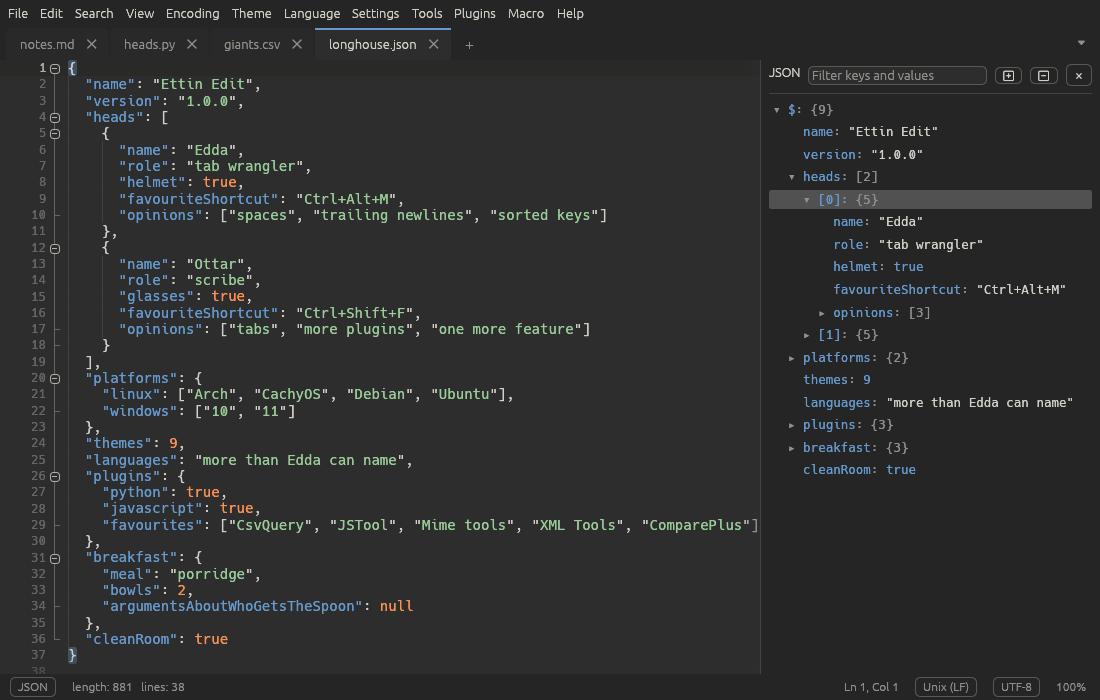
From top to bottom:
The menu bar
You can hide the menu bar to give the window a cleaner look: choose View > Menu Bar or press Ctrl+M. While it's hidden, tap Alt on its own to show it for a moment; it goes away again when you run a command, press Escape or Alt, or click elsewhere. Press Ctrl+M (or use View > Menu Bar from the shown menu, or right-click the toolbar) to keep it showing again. The toolbar can be hidden too, and Ettin Edit remembers both choices.
| Menu | What's in it |
|---|---|
| File | New, open, save, recent files, print, rename, workspace folders, close |
| Edit | Undo, clipboard, line operations, case, comments, multi-select, completion, column editor, read-only |
| Search | Find, replace, Find in Files, marks, Go to Line, bookmarks |
| View | Word wrap, symbols, panels, split view, folding, zoom, distraction-free mode, the menu bar and toolbar |
| Encoding | The encoding the file is saved in, or read it again in another one |
| Theme | Pick a theme, edit its colours, open the themes folder |
| Language | Pick the highlighting language, add your own languages |
| Settings | Preferences, the Shortcut Mapper, Customise Toolbar and quick on/off switches |
| Tools | Compare, CsvQuery, MIME Tools, JSON and JavaScript, XML Tools |
| Plugins | Your plugins' commands, and managing plugins |
| Macro | Record, play back and save macros |
| Help | This manual, update checks and About |
Under the menu bar is the toolbar: tabs of buttons for the commands you use most. Right-click it to customise it, or press Ctrl+F1 to collapse it to its tab names.
Help > About Ettin Edit shows the version you have.
Right-clicking the text gives you the whole Edit menu, the Tools menu and your plugins' commands, so you rarely need to go up to the menu bar.
Tabs
Each open file has a tab. A dot on a tab means it has unsaved changes, and a pin means it's pinned. At the end of the tab bar:
- + opens a new, empty tab (Ctrl+N).
- ⏷ opens the tab list, handy when there are more tabs than fit.
Right-click a tab for close, pin, split-view and file commands. Hover over it to see the file's full path.
When the window is split in two, each half has its own tab bar.
The find bar
Ctrl+F or Ctrl+H opens the find bar above the text. See Finding and replacing.
The editor
The text itself, with the gutter on its left:
- line numbers,
- bookmarks (click the gutter next to a line, or press Ctrl+F2),
- fold markers: − folds a block away and + shows it again.
The editor highlights the current line, the bracket matching the one at the caret, and other places where the selected word appears. Everything it shows can be turned on and off in the View menu.
Panels
Panels open beside the text and stay until you close them:
| Panel | Where | Opens with |
|---|---|---|
| Folder as Workspace | left | File > Open Folder as Workspace… |
| Function List | right | View > Function List |
| Document Map | right | View > Document Map |
| JSON tree | right | Ctrl+Alt+J |
| Search results | bottom | Find All or Find in Files |
| XPath | bottom | Ctrl+Alt+Shift+E |
| CsvQuery | bottom | Ctrl+Alt+Q |
| Plugin panels | right or bottom | the plugin's own command |
Drag the edge of a panel to resize it.
The status bar
On the left:
- The language, such as Rust or Plain Text. Click it to choose another.
- length (characters) and lines in the document.
- In XML files, the XPath of the element at the caret. Click it to copy it.
- ● Recording macro while a macro is being recorded.
- Read-only when the tab is read-only. Click it to allow editing again.
On the right:
- Ln and Col, the caret's line and column, followed by Sel (how many characters are selected) and how many carets there are, when that applies. Click it to go to a line.
- The line ending: Windows (CR LF), Unix (LF) or Macintosh (CR). Click it to change the document's line endings.
- The encoding, such as UTF-8. Click it for the Encoding menu.
- The zoom level.
The command palette
Press F1 anywhere. Type a few letters of any command, for example
dup for Edit › Line Operations › Duplicate, then press Enter.
Words can be in any order and needn't be complete, and each command shows its
shortcut, so the palette is also a good way to learn them.
Files and tabs
Opening files
- File > Open… (Ctrl+O) opens one or more files; select several in the dialog to open them all.
- File > Open Recent lists the last 12 files you had open. Clear Recent Files at the bottom empties the list.
- Drag files from your file manager onto the window.
- Pass them on the command line:
ettin-edit notes.txt todo.md(see the command line). - On Windows, right-click a file and choose Edit with Ettin Edit, if you turned that on when installing.
- In the folder workspace, click a file.
A file opened while the only tab is an untouched new one replaces that tab, so you don't collect empty tabs.
Ettin Edit works out each file's encoding and line endings and its language as it opens it, and keeps them when you save. Very large files are fine: a 50 MB log opens in about a second, and word wrap keeps up when you resize the window.
One window or several
By default there is one Ettin Edit window. Opening a file from your file
manager or a terminal while Ettin Edit is running sends it to the open window
instead of starting a second copy. To get separate windows, turn off
Settings > Single Window, or start Ettin Edit with --multi-instance.
New files
File > New (Ctrl+N) or the + at the end of the tabs opens an empty tab named new 1, new 2 and so on. Its line ending, encoding and language come from Preferences > New Documents.
Saving
| Command | Shortcut | What it does |
|---|---|---|
| File > Save | Ctrl+S | Saves the current tab. A new tab asks for a name. |
| File > Save As… | Ctrl+Alt+S | Saves under a new name; the tab then shows that file. |
| File > Save All | Ctrl+Shift+S | Saves every tab with changes. |
The file keeps its encoding, line endings and byte-order mark. If the text holds a character the file's encoding can't store, Ettin Edit refuses to save and tells you which character it is, rather than quietly losing it. Pick another encoding from the Encoding menu and save again.
XML files can be checked for mistakes every time they're saved; see XML Tools.
Tabs
- Click a tab to switch to it, or use Ctrl+Tab / Ctrl+Shift+Tab (also Ctrl+PageDown / Ctrl+PageUp) for the next and previous tab.
- Drag a tab to move it along the tab bar.
- Close a tab with its ×, a middle-click, or Ctrl+W. File > Close All (Ctrl+Shift+W) and File > Close Others close the rest.
- Pin Tab (right-click a tab) keeps a tab at the front with a pin on it. Close All and Close Others leave pinned tabs open, and the × on a pinned tab unpins it instead of closing it.
- Closing a tab with unsaved changes asks whether to save them.
The tab's right-click menu
| Command | What it does |
|---|---|
| Close, Close Others | Close this tab, or every other one |
| Pin Tab / Unpin Tab | See above |
| Move to Other View, Clone to Other View | See split view |
| Reload from Disk | Read the file again, replacing what's in the tab (Undo brings your version back) |
| Rename… | Rename the file on disk; the tab follows it |
| Move to Trash… | Move the file to the Recycle Bin or trash and close the tab |
| Open Containing Folder | Show the file in your file manager, selected where possible |
| Open Terminal Here | Open a terminal in the file's folder |
| Copy Full Path, Copy File Name | Copy them to the clipboard |
The file commands are also in the File menu, for the current tab. Open
Terminal Here uses Windows Terminal or cmd on Windows; on Linux it tries
$TERMINAL, then common terminals such as Konsole and GNOME Terminal.
You won't lose your work
Ettin Edit backs up unsaved changes every few seconds, including tabs that were never saved. If Ettin Edit, your computer or the power goes away, your tabs and their changes are back next time you start it.
When you quit, Ettin Edit remembers the open tabs, unsaved changes included, without asking, and reopens everything next time: each tab's caret, encoding, line ending, language, pin, read-only state and the split view. If you'd rather be asked to save each file when quitting, turn off Settings > Remember Unsaved Changes on Exit. To start with no tabs from last time, turn off Reopen the files that were open last time in Preferences.
When another program changes the file
If a file you have open is changed by another program, a bar appears above the text:
- Reload reads the new version. If you had unsaved changes, Undo brings them back.
- Keep My Version leaves your text alone; saving will overwrite the other program's changes.
If the file is deleted or moved, the bar offers Keep Open, which keeps the text in the tab so you can save it again, or Close.
To reload changed files without being asked, turn on Settings > Reload Files Changed on Disk Automatically. It only reloads files that have no unsaved changes in Ettin Edit.
Read-only tabs
Edit > Read-Only stops a tab from being changed by accident. The status bar shows Read-only; click it, or choose the command again, to allow editing.
Summary
View > Summary… shows the file's full path, when it was created and changed, its encoding, and how many characters, words and lines it has, plus its size on disk and the same counts for the selection.
Editing text
The basics
Ettin Edit edits text the way you'd expect, plus a few extras:
| Keys | What they do |
|---|---|
| Ctrl+Z / Ctrl+Y | Undo and redo. Typing is undone a burst at a time, and the tab knows when you're back at the saved version. |
| Ctrl+X / Ctrl+C / Ctrl+V | Cut, copy and paste |
| Ctrl+A | Select everything |
| Home | Go to the first non-blank character of the line; press again for the very start |
| Ctrl+Left / Ctrl+Right | Move a word at a time |
| Ctrl+Backspace / Ctrl+Delete | Delete a word at a time |
| Tab / Shift+Tab on selected lines | Indent or outdent them |
| Double-click / triple-click | Select a word / a line. Keep the button down and drag to select by words or lines. |
Enter keeps the current line's indentation. Whether Tab inserts a tab or spaces, and how wide a tab is, are set in Preferences or Settings > Indent With Spaces.
Multiple carets
Several carets let you make the same change in several places at once. Everything you type, delete or paste happens at each of them.
| To | Do this |
|---|---|
| Add a caret | Ctrl+click or Alt+click |
| Add a selection | Ctrl+drag |
| Add a caret on the line above or below | Ctrl+Alt+Up / Ctrl+Alt+Down |
| Select the next place the selected text appears | Ctrl+Shift+D (Edit > Multi-Select > Select Next Occurrence) |
| Select every place it appears | Alt+F3 (Select All Occurrences) |
| Put a caret on every search match | Search > Select All Matches |
| Go back to one caret | Esc |
Pasting several lines onto the same number of carets puts one line at each caret, which is handy for filling in a column.
The status bar shows how many carets there are.
Column (box) selection
Hold Alt and drag, or use Alt+Shift with the arrow keys, to select a rectangle. Typing then replaces or inserts on every row, and Backspace and Delete work on every row too.
Column Mode
Edit > Column Mode (Alt+Shift+C) saves holding Alt: while it's on, a plain drag and Shift with the arrow keys select a rectangle, and the status bar says Column mode. A plain click still puts one caret where you click, and Shift+click still extends a normal selection. Click Column mode in the status bar, or use the command again, to turn it off. It's off each time Ettin Edit starts.
Column Editor
Edit > Column Editor… (Alt+C) inserts the same thing at every caret, or at the caret's column on each line below it:
- Text to insert: the same text on every line.
- Numbers to insert: a sequence, with an Initial number, how much to Increase by, how many times to Repeat each number, Leading zeros, and Dec, Hex, Oct or Bin.
For example, start 1, increase by 1, on ten lines gives 1 to 10; with leading zeros it gives 01 to 10.
Line operations
Edit > Line Operations. The commands in this table work on the lines the selection touches, or on the caret's line:
| Command | Shortcut |
|---|---|
| Duplicate | Ctrl+D |
| Delete Lines | Ctrl+Shift+L |
| Move Up / Move Down | Ctrl+Shift+Up / Ctrl+Shift+Down |
| Join Lines | Ctrl+J |
| Split Lines at Long-Line Column | Ctrl+I |
| Insert Blank Line Above / Below | Ctrl+Alt+Enter / Ctrl+Alt+Shift+Enter |
Sorting, reversing and removing lines work on the selected lines, or on the whole document when nothing is selected. Everything is one undo step.
Sorting, ascending or descending:
- Lexicographically: in character order, so
Bcomes beforea. - Ignoring Case:
aandAtogether. - As Integers and As Decimals: by the number at the start of each
line, so
9comes before10. Lines without a number go first. - By Length: shortest first.
- Reverse Line Order flips the lines without sorting.
Removing lines:
- Remove Duplicate Lines keeps the first copy of each line.
- Remove Consecutive Duplicate Lines only removes repeats that follow
each other, like the Unix
uniq. - Remove Empty Lines removes lines with nothing on them; Including Blank Ones also removes lines that only hold spaces or tabs.
Spaces and tabs
Edit > Blank Operations work on the selected lines, or the whole document:
- Trim Trailing Space, Trim Leading Space, or both.
- EOL to Space joins the lines with a space between them.
- Tabs to Spaces, Leading Spaces to Tabs and All Spaces to Tabs, using the tab width from Preferences.
Case
Edit > Convert Case To:
| Command | Shortcut | Example |
|---|---|---|
| UPPERCASE | Ctrl+Shift+U | HELLO WORLD |
| lowercase | Ctrl+U | hello world |
| Title Case | Alt+U | Hello World |
| Sentence case | Ctrl+Alt+U | Hello world |
| iNVERT cASE | Ctrl+Alt+Shift+U | hELLO wORLD |
Comments
Edit > Comment > Toggle Line Comment (Ctrl+Q) comments out the
selected lines, or uncomments them if they're all comments.
Toggle Block Comment (Ctrl+Shift+Q) wraps the selection in a
block comment. Ettin Edit uses the right markers for the tab's language:
// and /* */ in Rust, # in Python, <!-- --> in HTML, and so on.
Date and time
Edit > Insert > Date and Time puts the current date and time at the caret, short (F5) or long (Shift+F5).
Typing helpers
Each of these can be turned off in the Settings menu or in Preferences.
- Auto-Close Brackets and Quotes: typing
(,[,{,"or'adds the closing one. Typing the closer steps over it, Backspace removes an empty pair, and typing an opener with text selected wraps the selection. - Close Tags Automatically (XML and HTML, in Tools > XML Tools):
typing
>after<padds</p>. Empty HTML elements such as<br>are left alone. - Smart Indentation: Enter after
{,(or[(and after:in Python and YAML) indents the new line, and between{}it puts the closing bracket on a line of its own. Typing a closing bracket outdents. - Word Completion: as you type, a list offers words already in the document. Ctrl+Space opens it at any time.
- Keyword and Function Completion: the list also offers the language's keywords and functions, each with its signature.
- Parameter Hints: typing
(after a function's name shows its parameters above the caret, with the one you're on in bold. It follows you from argument to argument; Esc hides it and Ctrl+Shift+Space brings it back.
In the completion list, use the arrow keys and Enter or Tab to pick a word, or Esc to close it.
Completion knows Python, JavaScript and TypeScript, Rust, C, C++, C#, Java, Go, PHP, Lua, Ruby, Kotlin, Swift, SQL, PowerShell, CSS, HTML and shell scripts, plus the functions your document defines. You can add your own lists; see Languages.
Matching brackets and tags
Putting the caret next to a bracket highlights its partner; an unmatched bracket turns red. In HTML and XML the matching opening or closing tag is highlighted too. Other places where the selected word appears are lightly highlighted, which makes typos easy to spot.
Finding and replacing
The find bar
Search > Find… (Ctrl+F) opens the find bar above the text. If you had text selected, it's already filled in. Ettin Edit searches as you type, highlights every match, and shows 3 of 17 so you know where you are.
| In the find bar | What it does |
|---|---|
| Enter / Shift+Enter | Next / previous match |
| ↓ / ↑ | Next / previous match (also F3 / Shift+F3 from anywhere) |
| Aa | Match case |
| W | Whole words only |
| \n | Extended: \n, \t, \xNN and the like mean those characters |
| .* | Regular expression |
| … | More: Wrap around, Find All, Select All Matches, Mark All |
| Esc or × | Close the find bar |
With Wrap around on (the default), searching past the last match starts again at the top.
Find Selected Next (Ctrl+F3) and Find Selected Previous (Ctrl+Shift+F3) search for the selected text, or the word at the caret, without opening the find bar.
Replacing
Search > Replace… (Ctrl+H), or the ⏵ arrow at the left of the find bar, adds a second row:
- Replace replaces the current match and moves to the next. Pressing Enter in the replace box does the same.
- Replace All replaces every match as one undo step. It stays fast on big files: 282,000 replacements in a 50 MB file take about a second.
- In selection limits Replace All to the selected text. It's turned on for you when you open the bar with several lines selected.
Leave the replace box empty to delete what you searched for: Replace All
with an empty box removes every match. This works in all three modes, so
Extended \r\n or the regular expression \r\n with an empty
replacement joins every line into one.
Line breaks
Ettin Edit keeps every line break as one character while you edit, and
writes the tab's own line ending (shown in the status bar) when it saves. So
in Extended mode and in regular expressions, \r\n, \r and \n all
find a line break, whether the file uses Windows (CR LF), Unix (LF) or old
Mac (CR) line endings. A match on a line break is highlighted just past the
end of its line.
In a regular expression, an optional \r (as in \r?\n) finds nothing on
its own, so \r?\n still finds exactly one line break. To change the line
endings a file is saved with, click the line ending in the status bar (see
Line endings).
Extended mode (\n, \t, \xNN)
Turn on \n to search for characters you can't type in the find box,
without writing a regular expression. Everything else in the box is plain
text, so . and * still mean themselves. Extended mode and regular
expressions are two ways of reading the box, so turning one on turns the
other off. The same escapes work in the replacement.
| Write | To mean |
|---|---|
\n | A line break |
\r | A line break too: Ettin Edit keeps every line break as one character and writes the tab's own line ending when it saves, so \r\n, \r and \n all mean a line break |
\t | A tab |
\0 | The NUL character |
\\ | A backslash |
\xNN | The character with hex code NN, such as \x41 for A |
\uNNNN or \u{N…} | Any Unicode character, such as \u00E9 for é or \u{1F600} for 😀 |
\dNNN | The character with decimal code NNN (up to 255), such as \d065 |
\oNNN | The character with octal code NNN (up to 377), such as \o101 |
\bNNNNNNNN | The character with binary code NNNNNNNN, such as \b01000001 |
A backslash followed by anything else is searched for as it is.
For example, find ,\t and replace with ;\n to turn every comma followed
by a tab into a semicolon and a new line. Find in Files has an Extended
box that works the same way.
Regular expressions
Turn on .* to search with a regular expression. Ettin Edit uses the
syntax of the Rust regex library, which is close to Perl's and Python's,
except that look-around ((?=…), (?<=…)) and back-references inside the
pattern aren't supported.
| Pattern | Matches |
|---|---|
\d+ | One or more digits |
^\s+$ | A line holding only spaces or tabs (^ and $ are line starts and ends) |
colou?r | color or colour |
(\w+)@(\w+)\.com | An address such as ann@example.com, with two groups |
(?<year>\d{4})-(?<month>\d\d) | A date, with named groups |
(?s)begin.*?end | begin to the nearest end, across lines |
In the replacement:
| Write | To insert |
|---|---|
$1 or \1 | The first group ($2, \2 and so on for the others) |
${name} | A named group |
$0 | The whole match |
\n, \t | A line break, a tab (\r and \r\n are a line break too) |
$$ | A dollar sign |
\\ | A backslash |
For example, find (\w+), (\w+) and replace with $2 $1 to turn
Lovelace, Ada into Ada Lovelace.
Finding everything at once
These are in the Search menu and the find bar's … menu:
- Find All in Current Document lists every matching line in the results panel at the bottom.
- Find All in Open Tabs does the same for every tab.
- Select All Matches puts a caret on every match, so you can edit them all at once (see multiple carets).
- Mark All highlights every match in a different colour that stays after you close the find bar. Mark All and Bookmark Lines also bookmarks each line with a match. Clear All Marks removes the highlights.
Find in Files
Search > Find in Files… (Ctrl+Shift+F) searches every file in a folder:
- Find what: the text or regular expression, with the same Match case, Whole word and Regular expression options as the find bar.
- Folder: where to look. Browse… picks one.
- Files: which files, as patterns separated by spaces or semicolons, such
as
*.rs *.toml. Start a pattern with!to leave those files out, for example*.js !*.min.js. Leave it empty for every file. - Include subfolders and Include hidden files and folders.
The search runs in the background, so you can keep working; Stop ends it early. Binary files are skipped.
You can also start Find in Files from the folder workspace: right-click a folder and choose Find in Files Here….
The results panel
Find All and Find in Files show their results in a panel below the text, grouped by file, with the matching words highlighted.
- Click a line to jump to it; the file opens if it isn't open yet.
- Click a file's heading to fold its results away; Collapse All and Expand All do every file.
- × closes the panel.
Go to Line
Search > Go to Line… (Ctrl+G), or a click on Ln, Col in the
status bar, asks for a line number. Type 120 to go to line 120, or
120:15 for line 120, column 15.
Bookmarks
Bookmarks mark lines you want to come back to. A bookmarked line shows a marker in the gutter.
| Command (Search > Bookmark) | Shortcut |
|---|---|
| Toggle Bookmark (or click the gutter) | Ctrl+F2 |
| Next Bookmark | F2 |
| Previous Bookmark | Shift+F2 |
| Clear All Bookmarks |
The same submenu works on the bookmarked lines as a group: Cut, Copy or Remove Bookmarked Lines, Remove Unbookmarked Lines (keep only the bookmarked ones), and Inverse Bookmarks.
Together with Mark All and Bookmark Lines, that gives a quick way to pull out every line that matches something: mark them, then Copy Bookmarked Lines and paste them into a new tab.
Views, panels and navigation
Everything in this chapter is in the View menu unless it says otherwise.
What the editor shows
| Command | Shortcut | What it does |
|---|---|---|
| Word Wrap | Alt+Z | Wrap long lines at the window's edge instead of scrolling sideways. Line numbers stay with their lines, and the top line stays in place when you resize the window, even in very large files. |
| Line Numbers | The numbers in the gutter | |
| Highlight Current Line | A band behind the caret's line | |
| Show Symbol > Show Whitespace | A dot for each space and an arrow across each tab | |
| Show Symbol > Show End of Line | LF, CRLF or CR at each line end | |
| Show Symbol > Show Invisible Characters | A small label for each character you otherwise couldn't see (see below) | |
| Show Symbol > Show All Characters | Whitespace, line ends and invisible characters together; choose it again to hide them all | |
| Show Symbol > Indent Guides | Faint lines at each indentation level | |
| Long-Line Marker | A vertical line at a column, 80 unless you change it |
Show Invisible Characters labels characters that look like nothing, or like an ordinary space, so they can't hide in your text:
| Label | Character |
|---|---|
NUL, SOH … US, DEL, C1 | Control characters, such as ESC (character 27) |
NBSP, NNBSP | No-break space and narrow no-break space |
SP, MMSP, IDSP | Other spaces (en, em, thin, hair and so on, medium mathematical, ideographic) |
ZWSP, ZWNJ, ZWJ, WJ | Zero-width space, non-joiner, joiner and word joiner |
SHY | Soft hyphen |
LRM, RLM, ALM, LRE, RLE, PDF, LRO, RLO, LRI, RLI, FSI, PDI | Text direction marks and controls |
BOM | A byte-order mark (zero-width no-break space) inside the text |
LS, PS | Unicode line and paragraph separators |
VS, CGJ, TAG, INV, HF, MVS, IAC, DEPR | Variation selectors and other invisible formatting characters |
Without it, control characters still show as small symbols, but the other characters in the table look like a space or like nothing at all.
Change the long-line column at the bottom of the Settings menu or in Preferences. Edit > Line Operations > Split Lines at Long-Line Column (Ctrl+I) rewraps text to that width.
Zoom
Zoom In (Ctrl+= or Ctrl++), Zoom Out (Ctrl+-) and Reset Zoom (Ctrl+0) change the size of the text. The status bar shows the zoom level. To change the size Reset Zoom returns to, set the font size in Preferences.
Code folding
Folding hides a block of code, such as a function or an if, behind its first
line. Blocks follow the language's grammar: brackets, HTML and XML tags,
keyword blocks such as if … end, Markdown headings, comment blocks and
#region markers. Python, YAML and plain text fold by indentation. The full
list is in Languages.
- Click − in the gutter to fold a block and + to unfold it. A line in the gutter shows where each block starts and ends.
- The block's closing line stays visible, so
} else {folds each half.
| Command (View > Folding) | Shortcut |
|---|---|
| Fold All | Alt+0 |
| Unfold All | Alt+Shift+0 |
| Fold Current Level (the block the caret is in) | Ctrl+Alt+F |
| Unfold Current Level | Ctrl+Alt+Shift+F |
| Fold Level 1 to 5 (every block at that depth) | Alt+1 … Alt+5 |
Split view
Split view shows two tabs side by side, or one tab twice.
- Move to Other View moves the current tab to the other side, splitting the window if it isn't split yet.
- Clone to Other View shows the same document on both sides. Each side has its own caret and scroll position, and an edit on one side appears on the other at once. Closing one copy leaves the other open.
- Each side has its own tab bar and current tab. Click a side, or press F8 (Focus Other View), to work in it.
- Drag the divider to change the sizes.
- When one side has no tabs left, the split ends.
Both commands are also on the tab's right-click menu. The split is saved with the session. Compare uses the two views too: with the window split, Ctrl+Alt+D compares the two tabs you see.
Function List
View > Function List opens a panel on the right listing the functions, classes, methods and other parts of the document, nested the way they are in the code. It understands about 40 languages, including Markdown headings, INI sections and the keys of JSON and YAML files.
- Click an entry to jump to it.
- Type in Filter to find one by name.
- Show where the caret is keeps the entry you're in selected as you move around.
Character Panel
View > Character Panel opens a table of characters on the right, with each one's decimal and hex code, HTML entity and Unicode name, like Notepad++'s ASCII Codes Insertion Panel.
- Pick a block in the list: ASCII, Latin-1 Supplement, Greek and Coptic, Arrows, Box Drawing, Currency Symbols and others.
- Or search: type a character (
é), a code (U+00E9,0xE9,233,é) or words of its name (e acute,rightwards arrow,smiling face). The search covers every character up to the emoji. - Double-click a row to insert the character at the caret, or at every
caret. The second list chooses what is inserted: the character, the
HTML entity (
é), the code (U+00E9) or the decimal code (233). - Right-click a row to copy the character, its HTML entity or its code.
Hex View
View > Hex View (Ctrl+Alt+Shift+H) shows the current tab as the bytes it's saved as, in its encoding and with its line endings: the offset of each row on the left, sixteen bytes in hex in the middle, and the same bytes as text on the right, where anything that isn't a printable ASCII character is a dot. Choose it again to go back to the text. Each tab remembers whether it's in hex until you close it.
The bar at the bottom shows the offset of the byte at the cursor (in hex and decimal), its value in hex, decimal and binary, how many bytes are selected, and the size of the file.
| Keys | What they do |
|---|---|
| Arrows, PageUp, PageDown | Move the cursor; with Shift, select bytes |
| Home / End | Start or end of the row; with Ctrl, of the file |
| 0–9, A–F | Type a byte in hex: the first digit waits for the second, then the byte under the cursor is replaced |
| Tab | Switch between the hex and text columns. In the text column, typing a character replaces the bytes under the cursor with that character's bytes |
| Delete / Backspace | Remove the selected bytes, or the byte at or before the cursor |
| Insert | Insert a 00 byte at the cursor, to type over |
| Ctrl+C | Copy the selected bytes as hex, such as 48 65 6C |
| Ctrl+V | Paste hex digits over the bytes at the cursor (or over the selection) |
| Ctrl+Z / Ctrl+Y | Undo and redo, shared with the text |
Every change goes into the tab's text, so Undo works across both views and Save writes the bytes you see.
Changing any byte
You can type any byte anywhere, even one that leaves the text invalid in the
tab's encoding. For example, in a UTF-8 file, typing over the first byte of
é (C3 A9) leaves half a character, and a lone 0D in a file whose line
endings are CR LF would be saved differently. When that happens, the tab is
edited as bytes: the bar says so, and Save writes exactly the bytes
shown. Undo the change, or finish it (type the second byte of a new
character, say), and the tab goes back to being text as soon as its bytes
are valid again.
While a tab is edited as bytes it stays in Hex View. Choosing View > Hex View again shows it as text if its bytes read as text in its encoding (or in one Ettin Edit can work out from them); otherwise the bar says why it stays. Encoding > Reopen With reads the file as text in the encoding you pick, whatever its bytes (see Encodings).
Binary and very large files
Files that look like binary data rather than text (images, programs,
archives: anything with a 00 byte near the start that isn't UTF-16) open
straight into Hex View, edited as bytes, without being read as text first.
Files up to 64 MB are read into memory; bigger ones are read from disk as you
scroll, so even a file of several gigabytes opens at once and changing a byte
in it is instant.
Saving writes to a new file next to the old one and then puts it in place, so the file is never half written. For files over 64 MB, Undo starts again after saving. Unsaved changes to files up to 64 MB come back next time like any other tab's; for bigger files, Ettin Edit asks whether to save them when you quit. Copy copies at most 16 MB.
Document Map
View > Document Map shows the whole document in miniature on the right, with the part on screen marked. Click or drag in it to scroll. It's a quick way to find your place in a long file.
Folder as Workspace
File > Open Folder as Workspace… opens a folder as a tree on the left, for working on a project. View > Folder as Workspace shows or hides the panel, and File > Close Workspace closes the folder.
- Click a file to open it. The tree follows the current tab, and notices files being added or removed by itself.
- The panel's buttons collapse every folder, read the folder again, and Show hidden files.
- Right-click an entry for Open, Copy Path, Find in Files Here… and Open Terminal Here.
The workspace is remembered next time you start Ettin Edit.
Distraction-free mode
View > Distraction-Free Mode (F11) goes full screen and hides the menus, tabs, panels and status bar, leaving the text in a centred column. Press F11 again to come back. Shortcuts and the command palette (F1) still work.
Tab list
View > Tab List…, or the ⏷ button at the end of the tab bar, lists every open tab. Type part of a file or folder name to narrow the list, then press Enter or click a tab to switch to it.
Command palette
View > Command Palette… (F1) lists every command in every menu, your saved macros and your plugins' commands, each with its shortcut. Type a few letters of any words in its name, in any order, then press Enter.
Encodings and line endings
A text file is just bytes; its encoding says which bytes mean which characters. Today almost everything is UTF-8, but older files, and files from some Windows programs, use other encodings. Ettin Edit reads and writes all the common ones.
How Ettin Edit picks an encoding
When a file opens, Ettin Edit looks for, in order:
- a byte-order mark (BOM) at the start, which names UTF-8 or UTF-16 for certain;
- text that is valid UTF-8;
- UTF-16 without a BOM;
- failing those, the most likely legacy encoding, such as Windows-1252, Windows-1251 or Shift_JIS.
The encoding is shown on the status bar, and the file is saved in the same one, with or without a BOM just as it was. If some bytes don't make sense in the encoding it chose, Ettin Edit says so and shows them as �. Saving would replace them with �, so if the text looks wrong, use Reopen With (below) first.
Binary files (with a 00 byte near the start that isn't UTF-16) aren't read
as text at all: they open in Hex View.
The Encoding menu
Open it from the menu bar or by clicking the encoding on the status bar.
Save as (the top of the menu) changes the encoding the tab will be saved in. The text you see doesn't change; the next save writes it in the new encoding. The choices are:
- UTF-8, UTF-8 with BOM, UTF-16 LE and UTF-16 BE;
- about 35 older encodings, grouped by region: Western European (Windows-1252, ISO-8859-1, ISO-8859-15, Mac Roman…), Central European, Cyrillic (including KOI8-R and KOI8-U), Greek, Turkish, Baltic, Nordic, Hebrew, Arabic, Vietnamese, Thai, Romanian, Chinese (GBK, GB18030, Big5), Japanese (Shift_JIS, EUC-JP, ISO-2022-JP) and Korean (EUC-KR).
If the text contains a character the new encoding can't hold, such as €
in ISO-8859-1, saving stops and tells you which character and where. Nothing
is lost.
Reopen With reads the file from disk again in the encoding you pick. Use
it when Ettin Edit guessed wrong and the text looks garbled, for example
é where there should be é. It's only available for saved files, and you
can undo it.
New tabs use the encoding set in Preferences > New Documents, UTF-8 unless you change it.
Line endings
Lines end with LF on Linux and macOS, and CR LF on Windows; very old Mac
files use CR. Ettin Edit detects the ending a file uses and keeps it when
saving, so editing a Windows file on Linux doesn't change every line.
Click the line ending on the status bar, Unix (LF), Windows (CR LF) or Macintosh (CR), to convert the whole document to another. View > Show Symbol > Show End of Line shows each line's ending.
New tabs use the line ending set in Preferences > New Documents: your system's usual one unless you change it.
Chinese, Japanese and Korean text
Ettin Edit's own fonts don't include Chinese, Japanese or Korean characters, so it uses a CJK font installed on your system for them, such as Noto Sans CJK on Linux or Microsoft YaHei on Windows. If those characters show as boxes, install a CJK font.
Macros
A macro records what you do in the editor and plays it back, so a repetitive edit only has to be done once.
Recording and playing back
- Put the caret where the first edit starts.
- Choose Macro > Start Recording (Ctrl+Shift+R). The status bar shows ● Recording macro.
- Make the edit: type, move with the keyboard, use the clipboard, and use commands such as Find Next, line operations or case conversion.
- Choose Macro > Stop Recording (Ctrl+Shift+R again).
- Choose Macro > Playback (Ctrl+Shift+P) to do it all again from wherever the caret is.
The trick is to finish the recording where the next run should start, for example at the beginning of the next line. Use keys rather than the mouse while recording; mouse clicks aren't recorded.
Example: to wrap every line of a list in quotes and add a comma, put the caret at the start of the first line and start recording. Type
", press End, type",, then press Down and Home. Stop recording. Now each playback does the next line, and Run a Macro Multiple Times does the rest.
Running a macro many times
Macro > Run a Macro Multiple Times… plays the current macro a number of times you choose, or with Run until the end of the file until the caret reaches the last line.
Saving macros
The current macro is forgotten when you record a new one or quit. To keep it, choose Macro > Save Current Macro… and give it a name. Saved macros:
- appear at the bottom of the Macro menu, ready to play,
- are in the command palette,
- can have a keyboard shortcut of their own: find the macro in the Shortcut Mapper and click Set…,
- are kept between sessions.
Macro > Delete Saved Macro removes one.
Printing and exporting
Printing
File > Print… (Ctrl+P) opens the document in your web browser's print preview, where you choose the printer, page size, margins and which pages to print. Using the browser means printing works the same on every system and you get a proper preview.
The printout keeps the syntax colours, darkened so they read well on white paper. If you use a dark theme, the colours of Ettin Light are used instead, so you don't print a page of black ink. Line numbers are printed in the margin.
Both can be turned off in Preferences, under Files and Startup > Printing: Print line numbers and Print syntax colours.
To save a PDF, choose Save as PDF (or Microsoft Print to PDF) as the printer in the browser's print dialog.
Export as HTML
File > Export as HTML… saves the document as a web page with the current theme's colours and font, ready to put on a website or attach to an email. Line numbers are included when they're turned on in the View menu.
JSON and JavaScript
Tools > JSON and JavaScript covers what the JSTool plugin does for Notepad++, built in.
Like every text tool, these work on the selection, or on each selection when there are several, or on the whole document when nothing is selected. Each use is one undo step. When a tool finds a mistake, a notice at the bottom of the window gives the line and column, the caret moves there, and Go to takes you back to it later.
Format and minify
| Command | Shortcut | What it does |
|---|---|---|
| Format | Ctrl+Alt+M | Indents JSON or JavaScript neatly, one item per line |
| Minify | Ctrl+Alt+N | Removes all the spaces and line breaks that aren't needed |
Formatting indents with a tab or with spaces, as set for the editor in Preferences.
Both commands try strict JSON first. If the text isn't JSON (it has comments,
single quotes, trailing commas or code), they treat it as JavaScript and say
so in the notice. The JavaScript formatter understands modern syntax:
template strings, regular expression literals, arrow functions, classes,
switch and case, and comments, which it keeps.
Checking and sorting
- Validate JSON checks that the text is valid JSON and points at the first mistake if it isn't.
- Sort JSON Keys puts the keys of every object in alphabetical order, all the way down, and formats the result.
The JSON tree
JSON Tree (Ctrl+Alt+J) opens a panel on the right showing the current document as a tree of objects, arrays and values.
- The tree updates as you type and opens at the caret's position.
- Click a node to jump to it in the text.
- Type in Filter keys and values to show only the nodes whose key or value contains some text, with their parents.
- The ⊞ and ⊟ buttons at the top expand and collapse everything; right-click a node for Expand All Inside.
- Right-click a node to Copy Path (a path such as
$.items[2].name), Copy Key or Copy Value.
If the document isn't valid JSON, the panel says where the problem is, with a Go to Error button. Very large documents are too big to show as a tree; the panel says so rather than freezing.
XML Tools
Tools > XML Tools covers what the XML Tools plugin does for Notepad++, built in. Like the other text tools, the formatting commands work on the selection or on the whole document, as one undo step.
Formatting
| Command | Shortcut | What it does |
|---|---|---|
| Pretty Print | Ctrl+Alt+Shift+B | Indents the XML, one element per line |
| Pretty Print, Attributes on New Lines | The same, with each attribute on a line of its own | |
| Linearize | Ctrl+Alt+Shift+L | Removes the indentation and line breaks between elements |
Text inside elements, comments, CDATA sections and processing instructions is kept as it is.
Checking XML
- Check Syntax (Ctrl+Alt+Shift+M) checks that the document is well-formed: every tag closed, attributes quoted, one root element. A mistake is shown with its line and column, and the caret moves there.
- Check Syntax When Saving runs that check each time you save an XML file, and warns you (the file is still saved). Also in Preferences under Files and Startup.
Validating against a schema
Validate checks the document against an XSD schema or a DTD:
- the XSD named in the root element's
xsi:schemaLocationorxsi:noNamespaceSchemaLocation, or - the DTD in the document's
<!DOCTYPE>, or - the schema you last used for that file.
If there isn't one, or to use another, choose Validate Against… and pick
the .xsd or .dtd file. Ettin Edit remembers your choice for that file.
Problems are listed in the results panel; click one to jump to its line. A valid document gets a short notice saying so.
Not supported: xs:key, xs:keyref and xs:unique, xs:redefine, and
schemas that have to be downloaded from the internet (keep a copy next to
your file instead).
XSL Transform
XSL Transform… asks for an XSLT 1.0 stylesheet and runs it over the
document. The output opens in a new tab, coloured as HTML or XML when that's
what it is. Messages from xsl:message are shown in a notice.
Not supported: xsl:import, xsl:include and the document() function.
XPath
XPath Panel (Ctrl+Alt+Shift+E) opens a panel below the text. Type an XPath 1.0 expression and press Enter or Evaluate:
- If the result is a set of nodes, each is listed; click one to jump to it in the text. Copy Results copies them all.
- Otherwise the panel shows the value, such as a number from
count(//item)or the text fromstring(//title). - Recent brings back earlier expressions.
Every XPath 1.0 function is available, plus ends-with(), lower-case() and
upper-case() from XPath 2.0. Namespace prefixes declared in the document
work in expressions, and a name without a prefix also matches elements in the
default namespace, so //book finds <book> even in an XHTML or Atom file.
The current XPath
In an XML file the status bar shows where the caret is, such as
/catalog/book[3]/title. Click it, or use Copy Current XPath
(Ctrl+Alt+Shift+P), to copy it.
Escaping
- Escape Special Characters turns
<,>,&,"and'into<,>,&,"and'. - Unescape Special Characters turns them back.
Closing tags
Close Tags Automatically adds the closing tag as you type an opening one
in XML and HTML. Empty HTML elements such as <br> and <img> don't get
one.
MIME Tools
Tools > MIME Tools encodes and decodes text the way the MIME Tools plugin does for Notepad++. Each command works on the selection (each selection, if there are several) or on the whole document, and is one undo step. Select just the part you need, such as one value in a JSON file, so the rest is left alone.
Base64
| Command | What it does |
|---|---|
| Base64 Encode | Encodes the text (as UTF-8) on one line |
| Base64 Encode with Line Breaks | The same, with a line break every 76 characters, as in email |
| Base64 Encode, URL-Safe | Uses - and _ instead of + and /, without = padding, for URLs and file names |
| Base64 Decode | Decodes either kind, with or without padding and line breaks |
Decoding stops with a message if the result isn't text, for example if the Base64 holds an image.
URLs
| Command | What it does | a b/c?d=é becomes |
|---|---|---|
| URL Encode (Part of a URL) | Encodes everything except letters, digits and -_.~, for one value in a query string or path | a%20b%2Fc%3Fd%3D%C3%A9 |
| URL Encode (Whole URL) | Keeps /, ?, =, &, : and the other characters that give a URL its structure | a%20b/c?d=%C3%A9 |
| URL Decode | Turns %XX back into characters |
Quoted-printable
Quoted-Printable Encode and Decode handle the encoding used in email
bodies, where =C3=A9 stands for é and a line ending in = continues on
the next.
HTML
- HTML Encode turns
&,<,>,"and'into entities. - HTML Encode, Including Accents and Symbols also encodes every
non-ASCII character, by name where it has one (
é,€) and by number otherwise. - HTML Decode turns named and numbered entities back into characters.
SAML
SAML Decode turns a SAML request or response back into readable XML.
Select the Base64 text of a POST, the value of a SAMLRequest or
SAMLResponse parameter, or a whole redirect URL that contains one. Ettin Edit
URL-decodes it if needed, decodes the Base64, inflates it if it was
compressed, and pretty prints the XML.
Compare
Tools > Compare shows the differences between two versions of a text, side by side. It's Ettin Edit's take on the ComparePlus plugin.
Starting a comparison
| Command (Tools > Compare) | Compares the current tab with… |
|---|---|
| Compare with Previous Tab (Ctrl+Alt+D) | the tab you were in before it. When the window is split, this is Compare the Two Views and compares the two tabs you can see. |
| Compare With | any other open tab you pick |
| Compare to Last Save | the file as it is on disk, showing your unsaved changes |
| Compare to Clipboard | the text on the clipboard |
| Compare to Last Commit (Git) | the file as it was in the last Git commit. Needs git installed and the file in a Git repository. |
| Compare Selections | two pieces of text: select one, then Ctrl+drag to select the other, or select one in each view |
The same commands are on the editor's right-click menu under Tools > Compare.
The Compare tab
The comparison opens in a tab of its own, with the two texts side by side and their lines lined up:
- Added lines, removed lines and changed lines each have their own colour, and the words that changed inside a changed line are highlighted.
- Moved blocks, lines that were cut from one place and pasted in another, are coloured apart from additions and removals.
- Blank filler rows keep the two sides level, and both sides scroll together.
- The bar at the right edge shows where all the differences are in the file; click or drag in it to go there.
The Compare tab is read-only, but it follows the tabs being compared: edit one of them and the comparison updates. Double-click a line to jump to it in its own tab and edit it there.
The toolbar
- First, ↑, ↓ and Last move between differences; F7 and Shift+F7 do the same from anywhere.
- Difference 3 of 12 and a count of changed, added and removed lines, or Identical when there's nothing to show.
- Swap Sides puts the left text on the right.
- Export Patch opens the differences as a unified diff (the format
git diffandpatchuse) in a new tab. - Options:
- Ignore Spaces and Tabs: differences in spacing don't count.
- Ignore Case:
Helloandhelloare the same. - Ignore Empty Lines: added or removed blank lines don't count.
- Detect Moved Lines: on by default.
- × closes the comparison (also Tools > Compare > Close Comparison).
Tools > Compare > Show Comparison brings the Compare tab back to the front.
Very large or very different files stay responsive: the comparison has a time limit and only draws the rows on screen.
CsvQuery
CsvQuery runs SQL queries on the CSV file you have open, like the CsvQuery
plugin for Notepad++. Open a .csv, .tsv or other delimited file and choose
Tools > CsvQuery > CsvQuery Panel (Ctrl+Alt+Q). A panel opens
below the text, and runs SELECT * FROM this straight away.
Ottar says: your spreadsheet would like a word. It can wait.
Tables
- The current tab is always the table
this. - Every other open tab is a table named after its file, with anything that
isn't a letter or digit turned into
_:orders 2024.csvisorders_2024. A tab is only read when a query names it. - The Tables menu in the panel inserts a table's name into the query.
So you can join files:
SELECT c.name, SUM(o.total) AS spent
FROM this AS o
JOIN customers AS c ON c.id = o.customer_id
GROUP BY c.name
ORDER BY spent DESC
Writing and running queries
Type SQL in the box at the top of the panel and press Ctrl+Enter,
click Run, or use Tools > CsvQuery > Run Query. Queries use
SQLite's SQL, so WHERE, GROUP BY, ORDER BY, LIMIT, joins, sub-queries, window functions and SQLite's
functions all work.
Queries run in the background, so a big file never freezes the editor. The query runs again by itself when you edit the tab or switch to another one. Recent brings back earlier queries.
UPDATE, DELETE, INSERT and CREATE TABLE work too, on a copy of the
data held for the query; the file itself never changes. To keep the
result, put it in a new tab (below).
How the file is read
Ettin Edit works out how the file is laid out, and the bar above the query box lets you correct it:
- Delimiter: comma, semicolon, tab, pipe or space.
- Quote character:
",'or none. - Header row: whether the first row names the columns. Without one, the
columns are called
col1,col2and so on. - Reset goes back to what was detected.
Each column is stored as integers, decimals or text, whichever is the
narrowest that fits every value. Values with leading zeros, such as zip codes
or ids like 007, stay text so the zeros aren't lost. Empty fields are
NULL. In semicolon-separated files, decimal commas such as 3,50 count as
numbers.
Results
The Results view shows the first 100,000 rows, with how long the query took.
- Click a column heading to sort by it; click again to reverse.
- Right-click a cell to Copy Value or Copy Row.
- Copy (or Tools > CsvQuery > Copy Results) copies every row as tab-separated text, which pastes cleanly into a spreadsheet.
- Open in New Tab (Results to New Tab) writes all the result rows to a new tab as CSV.
Columns
The Columns view describes each column of this: its type, how many
values are filled, empty and distinct, and the minimum, maximum and average.
Change a column's Type there if Ettin Edit picked the wrong one, for
example to sort a column of numbers stored as text.
Preferences and settings
Settings > Preferences… (Ctrl+,) holds every setting in one window. Changes take effect as you make them; there's no OK button to press. The sections are on the left, with buttons for the Shortcut Mapper, Theme Colours and Customise Toolbar below them.
The most-used switches are also in the Settings menu, so you can flip them without opening Preferences.
Editing
Indentation
- Tab width: how many columns a tab takes up, and how many spaces an indent is when indenting with spaces.
- Indent with tabs or Indent with spaces: what Tab and automatic indentation insert. Also Settings > Indent With Spaces.
- Smart indentation: keep the indent on Enter, and indent after an opening bracket. Also Settings > Smart Indentation.
Typing
- Close brackets and quotes automatically (Settings > Auto-Close Brackets and Quotes)
- Close HTML and XML tags automatically (Tools > XML Tools > Close Tags Automatically)
- Suggest words from the document while typing (Settings > Word Completion)
- Suggest the language's keywords and functions (Settings > Keyword and Function Completion)
- Show a function's parameters while typing a call (Settings > Parameter Hints)
See Typing helpers for what each one does.
Display
Font
- Editor font: the font for the text. The list shows the fonts installed on your computer, monospaced ones first; tick Show proportional fonts to see the rest, and type in Find to look for one. Use Built-in goes back to Hack, the font Ettin Edit comes with.
- Size: the text size. Ctrl+0 returns to this size after zooming.
Whatever font you choose, Chinese, Japanese and Korean characters are drawn with a CJK font from your system when one is installed.
Show: word wrap, line numbers, the current line highlight, whitespace, end-of-line symbols and invisible characters, indent guides, and the Long-line marker at column, with its column. These are the same switches as in the View menu.
New Documents
What a new tab (Ctrl+N) starts with:
- Line ending: your system's usual one (LF on Linux, CR LF on Windows), or one you choose.
- Encoding: UTF-8 unless you choose another.
- Language: Plain Text, or the language you write most, so new tabs are coloured and complete as that language straight away.
Opened files always keep their own line ending and encoding.
Files and Startup
Interface language
- The language of menus, dialogs and messages: the same as your system's, or one you choose. Open Translations Folder and Reload are for adding your own translations. See Translations.
Startup and exit
- Reopen the files that were open last time: start where you left off.
- Quit without asking about unsaved changes, and bring them back next time: see You won't lose your work. Also Settings > Remember Unsaved Changes on Exit.
- Open files in the running Ettin Edit window: one window for everything. Also Settings > Single Window.
Files
- Reload files changed on disk automatically when they have no unsaved changes. Also Settings > Reload Files Changed on Disk Automatically.
- Check that XML is well-formed each time it's saved. Also Tools > XML Tools > Check Syntax When Saving.
Printing
- Print line numbers
- Print syntax colours (darkened to read well on paper)
Updates
- Check for a new version of Ettin Edit once a week. Also Help > Check for Updates Automatically.
Plugins
Programs that run plugins: the Python 3 and Node.js programs to run
plugins with. Leave them empty and Ettin Edit finds them on the PATH; fill
them in if you want a particular Python (a virtual environment, say) or a
Node.js that isn't on the PATH. Changes apply when plugins are reloaded
(Plugins > Reload Plugins).
Where settings are kept
Settings are saved in settings.json in the
settings folder. You can copy that file to
another computer to take your settings with you. Edit it by hand only while
Ettin Edit is closed, because Ettin Edit writes it when settings change.
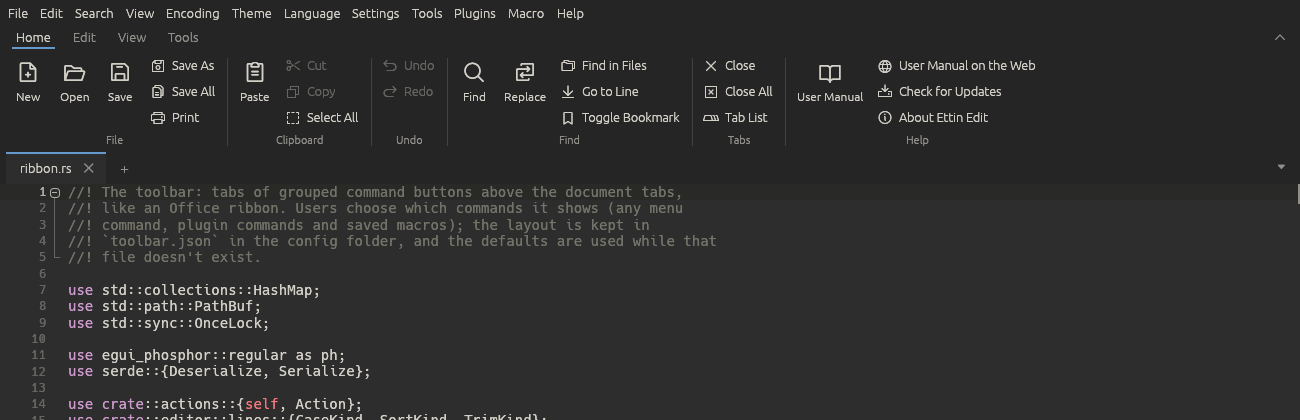
The toolbar
Under the menu bar is a tabbed toolbar, like the ribbon in Microsoft Office. Each tab holds groups of buttons for commands you use often. You can put any menu command on it, plugin commands and saved macros too, and arrange the tabs, groups and buttons however you like.
Using it
- Click a tab name (Home, Edit, View, Tools) to show its buttons.
- Hover over a button to see where its command is in the menus and its shortcut.
- Buttons for commands that turn something on or off, such as Word Wrap, are outlined while it's on. Buttons for commands that can't run right now, such as Undo with nothing to undo, are greyed out.
- When the window is too narrow for a tab, scroll its buttons sideways with Shift and the mouse wheel.
The default tabs
| Tab | Groups |
|---|---|
| Home | File, Clipboard, Undo, Find, Tabs, Help |
| Edit | Lines, Sort, Case, Comment, Blanks, Selection |
| View | Show, Zoom, Folding, Panels, Window, Customise |
| Tools | Compare, JSON, XML, Data (CsvQuery and MIME Tools), Macros |
Collapsing and hiding
To give the text more room, collapse the toolbar so only its tab names show:
- click ⌃ at the right end of the tab names, or
- double-click a tab name, or
- press Ctrl+F1, or
- choose View > Collapse Toolbar.
While it's collapsed, clicking a tab name opens its buttons over the text; they close again when you click a button or anywhere else. Expand it the same ways (⌄ at the right end).
View > Toolbar hides the toolbar completely and shows it again; so does Hide the toolbar in its right-click menu.
You can hide the classic menu bar as well, with View > Menu Bar,
Ctrl+M or Hide the menu bar in the toolbar's right-click menu.
While it's hidden, tap Alt to show it for a moment, and press
Ctrl+M to bring it back for good. The Help menu's commands (the user
manual, Check for Updates and About) are on the toolbar's Home tab too.
With both hidden, only the tabs, the text and the status bar are left. Both choices are kept in
settings.json.
Customising
Open Settings > Customise Toolbar…, or right-click the toolbar and choose Customise Toolbar… (it's also in View and in Preferences).
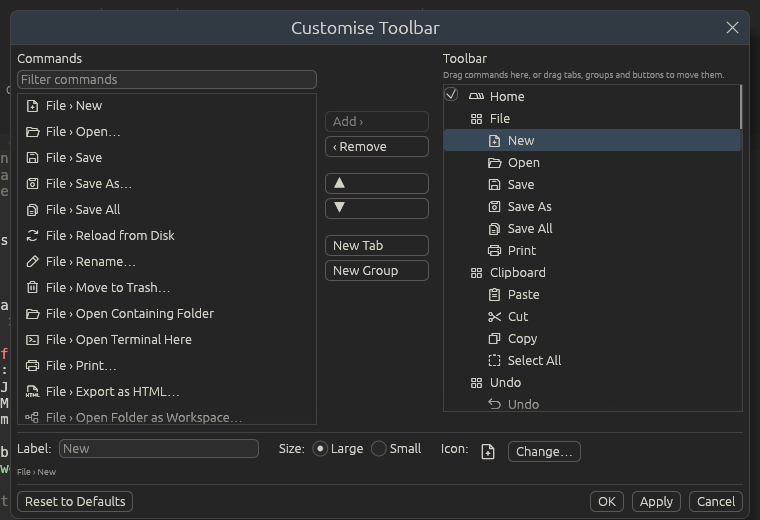
On the left is every command you can add: everything in the menus (themes, languages and encodings included), the commands of plugins that are running, and your saved macros. Type in the filter box to narrow the list; it matches every word you type, anywhere in the command's menu path.
On the right is the toolbar: tabs, the groups in each tab, and the buttons in each group.
Adding a button
- Drag a command from the left onto the right. Dropped on a button, it goes in front of that button; dropped on a group or a tab, it goes at the end of it.
- Or pick a command on the left, select where it should go on the right, and click Add › (or double-click the command). It goes after the selected button, or at the end of the selected group.
Arranging
- Drag tabs, groups and buttons to move them. A button can move to another group or tab, and a group to another tab.
- ▲ and ▼ move the selected item one place. A button at the end of its group moves into the next group.
- ‹ Remove takes the selected button, group or tab off the toolbar. You can also right-click a button on the toolbar and choose Remove from Toolbar.
- New Tab and New Group add an empty one after the selection.
- Untick the box in front of a tab to hide it without losing its buttons.
Changing a button, group or tab
Select it on the right and change it at the bottom of the dialog:
| Selected | What you can change |
|---|---|
| A tab or group | Its name. The built-in names follow the interface language until you rename them. |
| A button | Label (leave it empty for the command's own name), Size and Icon |
Large buttons have the icon above the label. Small buttons have the icon beside the label, and three of them stack in a column.
Change… opens the icon picker. It has the 1,500 icons of the
Phosphor set (MIT licence); type part of a
name, like star or arrow, to find one. Use the command's icon goes
back to the default.
Click OK or Apply to use your changes, or Cancel to forget them. Reset to Defaults puts back the toolbar Ettin Edit came with (press OK afterwards to keep it).
Plugin commands
Plugin commands appear under Plugins › plugin name in the command list once the plugin is running. A plugin can give its commands an icon; the others get a puzzle piece. While a plugin isn't running (turned off, or still starting), its buttons are left off the toolbar, and they come back when it runs again. In the Customise dialog they show greyed out.
To give your own plugin's commands an icon, see Writing plugins.
Where the layout is kept
Your toolbar is saved in toolbar.json in the
settings folder (~/.config/EttinEdit on Linux,
%APPDATA%\EttinEdit on Windows). Copy that file to use the same toolbar on
another computer. While you haven't changed anything, there's no file and you
get the default toolbar, including any new buttons later versions add.
A toolbar you have customised keeps your changes; Ettin Edit 1.7 adds only the
new Help group to the end of its Home tab (unless you renamed or
removed that tab), so the Help commands can be reached while the menu bar is
hidden. Delete the group if you don't want it.
Whether the toolbar is shown or collapsed is kept in settings.json.
Keyboard shortcuts
Every command in Ettin Edit can have a keyboard shortcut, and you can change any of them. This page lists the defaults; the menus and the command palette always show the ones in use.
Changing shortcuts
Settings > Shortcut Mapper… lists every command, every saved macro and every plugin command, with their shortcuts.
- Type in Find to narrow the list, by the command's name or by a
shortcut such as
ctrl+d. Tick Only commands with a shortcut to hide the rest. - Select a command.
- Click Set… (or Change…), then press the new keys. Esc cancels.
- If another command already uses those keys, Ettin Edit tells you which one. Move It Here takes the shortcut from the other command; Cancel leaves things as they were.
A command can have more than one shortcut: Add Another… adds one, Remove removes the selected one, and Reset to Default puts the command's original shortcut back. Reset All Shortcuts resets every command.
Rules for shortcuts:
- They need Ctrl or Alt, unless they use a function key (F1 to F12), so plain typing is never taken over.
- Ctrl+C, Ctrl+X and Ctrl+V are kept for copy, cut and paste.
- Undo, redo, cut, copy, paste, select all and completion are handled by the editor itself and can't be changed.
Your shortcuts are saved in settings.json in the
settings folder, so they move with your settings.
Default shortcuts
On macOS-style keyboards, Ctrl is still Ctrl; Ettin Edit runs on Linux and Windows only.
File
| Command | Shortcut |
|---|---|
| New | Ctrl+N |
| Open… | Ctrl+O |
| Save | Ctrl+S |
| Save As… | Ctrl+Alt+S |
| Save All | Ctrl+Shift+S |
| Print… | Ctrl+P |
| Close | Ctrl+W |
| Close All | Ctrl+Shift+W |
Edit
| Command | Shortcut |
|---|---|
| Undo | Ctrl+Z |
| Redo | Ctrl+Y |
| Cut | Ctrl+X |
| Copy | Ctrl+C |
| Paste | Ctrl+V |
| Select All | Ctrl+A |
| Line Operations > Duplicate | Ctrl+D |
| Line Operations > Delete Lines | Ctrl+Shift+L |
| Line Operations > Move Up | Ctrl+Shift+Up |
| Line Operations > Move Down | Ctrl+Shift+Down |
| Line Operations > Join Lines | Ctrl+J |
| Line Operations > Split Lines at Long-Line Column | Ctrl+I |
| Line Operations > Insert Blank Line Above | Ctrl+Alt+Enter |
| Line Operations > Insert Blank Line Below | Ctrl+Alt+Shift+Enter |
| Convert Case To > UPPERCASE | Ctrl+Shift+U |
| Convert Case To > lowercase | Ctrl+U |
| Convert Case To > Title Case | Alt+U |
| Convert Case To > Sentence case | Ctrl+Alt+U |
| Convert Case To > iNVERT cASE | Ctrl+Alt+Shift+U |
| Comment > Toggle Line Comment | Ctrl+Q |
| Comment > Toggle Block Comment | Ctrl+Shift+Q |
| Insert > Date and Time (Short) | F5 |
| Insert > Date and Time (Long) | Shift+F5 |
| Multi-Select > Select Next Occurrence | Ctrl+Shift+D |
| Multi-Select > Select All Occurrences | Alt+F3 |
| Auto-Completion > Complete Word | Ctrl+Space |
| Auto-Completion > Show Parameter Hint | Ctrl+Shift+Space |
| Column Editor… | Alt+C |
| Column Mode | Alt+Shift+C |
Search
| Command | Shortcut |
|---|---|
| Find… | Ctrl+F |
| Replace… | Ctrl+H |
| Find Next | F3 |
| Find Previous | Shift+F3 |
| Find Selected Next | Ctrl+F3 |
| Find Selected Previous | Ctrl+Shift+F3 |
| Find in Files… | Ctrl+Shift+F |
| Go to Line… | Ctrl+G |
| Bookmark > Toggle Bookmark | Ctrl+F2 |
| Bookmark > Next Bookmark | F2 |
| Bookmark > Previous Bookmark | Shift+F2 |
View
| Command | Shortcut |
|---|---|
| Word Wrap | Alt+Z |
| Distraction-Free Mode | F11 |
| Command Palette… | F1 |
| Collapse Toolbar | Ctrl+F1 |
| Menu Bar (show or hide) | Ctrl+M |
| Next Tab | Ctrl+Tab or Ctrl+PageDown |
| Previous Tab | Ctrl+Shift+Tab or Ctrl+PageUp |
| Focus Other View | F8 |
| Hex View | Ctrl+Alt+Shift+H |
| Folding > Fold All | Alt+0 |
| Folding > Unfold All | Alt+Shift+0 |
| Folding > Fold Current Level | Ctrl+Alt+F |
| Folding > Unfold Current Level | Ctrl+Alt+Shift+F |
| Folding > Fold Level 1 … 5 | Alt+1, Alt+2, Alt+3, Alt+4, Alt+5 |
| Zoom In | Ctrl++ or Ctrl+= |
| Zoom Out | Ctrl+- |
| Reset Zoom | Ctrl+0 |
Settings
| Command | Shortcut |
|---|---|
| Preferences… | Ctrl+, |
Tools
| Command | Shortcut |
|---|---|
| Compare > Compare with Previous Tab / the Two Views | Ctrl+Alt+D |
| Compare > Next Difference | F7 |
| Compare > Previous Difference | Shift+F7 |
| CsvQuery > CsvQuery Panel | Ctrl+Alt+Q |
| CsvQuery > Run Query (in the panel) | Ctrl+Enter |
| JSON and JavaScript > Format | Ctrl+Alt+M |
| JSON and JavaScript > Minify | Ctrl+Alt+N |
| JSON and JavaScript > JSON Tree | Ctrl+Alt+J |
| XML Tools > Pretty Print | Ctrl+Alt+Shift+B |
| XML Tools > Linearize | Ctrl+Alt+Shift+L |
| XML Tools > Check Syntax | Ctrl+Alt+Shift+M |
| XML Tools > XPath Panel | Ctrl+Alt+Shift+E |
| XML Tools > Copy Current XPath | Ctrl+Alt+Shift+P |
Macro
| Command | Shortcut |
|---|---|
| Start or Stop Recording | Ctrl+Shift+R |
| Playback | Ctrl+Shift+P |
Help
| Command | Shortcut |
|---|---|
| User Manual | Shift+F1 |
In the editor
These aren't commands, so they're not in the Shortcut Mapper:
| Keys | What they do |
|---|---|
| Ctrl+click, Alt+click | Add a caret |
| Ctrl+drag | Add a selection |
| Alt+drag, Alt+Shift+arrows | Column selection (a plain drag and Shift+arrows in Column Mode) |
| Ctrl+Alt+Up, Ctrl+Alt+Down | Add a caret above or below |
| Esc | Back to one caret; close the completion list, a parameter hint or the find bar |
| Home | First non-blank character, then the start of the line |
| Ctrl+Left, Ctrl+Right | Move by words |
| Ctrl+Backspace, Ctrl+Delete | Delete by words |
| Tab, Shift+Tab | Indent or outdent the selected lines |
| Middle-click on a tab | Close it |
Themes and colours
A theme colours both the text and the whole window: menus, tabs, panels and the status bar. Ettin Edit comes with nine:
| Dark | Light |
|---|---|
| Ettin Dark (the default, based on Base16 Eighties) | Ettin Light |
| Ettin Night | Ocean Light |
| Ocean Dark | Solarized Light |
| Mocha | GitHub Light |
| Solarized Dark |
Pick one from the Theme menu, where they're listed under Dark and Light. The change is immediate and remembered.
Themes are files
Every theme, built-in ones included, is a TextMate .tmTheme file in the
themes folder:
- Linux:
~/.config/EttinEdit/themes/ - Windows:
%APPDATA%\EttinEdit\themes\
Theme > Open Themes Folder opens it. This means you can:
- Change a built-in theme by editing its file, then choosing Theme > Reload Themes.
- Add a theme by dropping any
.tmThemefile into the folder and reloading. Themes you add appear under Custom in the Theme menu. Thousands of.tmThemefiles exist for TextMate, Sublime Text and other editors. - Share a theme by sending someone the file.
When Ettin Edit is updated, built-in themes you haven't edited are updated
with it; ones you have edited are left alone. Theme > Restore Built-in
Themes puts the original built-in themes back and keeps each edited copy
as <name>.tmTheme.bak, so nothing is lost.
Edit Theme Colours
Theme > Edit Theme Colours… changes a theme without touching its file by hand. Every change shows in the editor at once, so you can see what you're doing.
- Theme at the top picks the theme to edit (and switches to it).
- Editor colours: the Background, Text, Caret, Selection, Current line, Line numbers, Indent guides, Whitespace symbols, Search matches, and the Accent used for the current tab, buttons and fold markers. Click a colour to change it, or Don't set this colour to fall back to the default.
- Syntax colours are a list of rules. Each rule has a name, a Scope
that says which text it colours, a colour, and B, I and U for
bold, italic and underline. Type in Find to look for a rule, such as
stringorcomment. Add Rule adds one, and the button at the end of a rule deletes it. - Save writes the changes to the theme's file. Save As New Theme… saves them as a new theme with a name you choose, leaving the original alone. Discard Changes goes back to the theme as it was saved, and closing the window without saving does the same.
Scopes
Languages label each piece of text with a scope, such as
comment.line.double-slash.rust or string.quoted.double.json. A rule's
scope colours every piece of text whose scope starts with it, so string
colours every kind of string in every language, and string.quoted.double.json
only colours double-quoted strings in JSON. The most specific rule wins.
Separate several scopes with commas.
The scopes most themes set are comment, string, constant.numeric,
constant.language, keyword, storage, entity.name.function,
entity.name.type, variable, support.function and invalid. See
Languages for the scopes your own languages
use.
Fonts
The editor's font and size are in Preferences, not in the theme, so they stay the same whichever theme you pick.
Languages in Ettin Edit
Ettin Edit colours code with Sublime Text–style grammars. It ships with the usual set (C, C++, C#, Java, Python, Rust, Go, JavaScript, HTML, CSS, SQL, Markdown, JSON, YAML, XML, shell scripts and more), plus its own grammars for:
- TOML
- INI and other key/value files:
.ini,.cfg,.conf,.properties,.desktop,.reg,.inf,.editorconfig,.gitconfigand systemd units (.service,.socket,.timerand the rest) - TypeScript (
.ts,.mts,.cts) and TSX - PowerShell
- Dockerfile (also
ContainerfileandDockerfile.*) - HL7 v2 messages (the separators are read from each
MSHsegment) - Kotlin, Swift, Dart, Zig
- CMake, Nginx,
.envfiles - Protocol Buffers, GraphQL, Terraform / HCL
Pick a language for the current file from the Language menu. Ettin Edit
chooses one when a file opens, by its name, its extension and finally its
first line (a shebang such as #!/usr/bin/env python3).
You can add your own languages, or replace a built-in one, in two ways:
- write a short
.lang.jsonfile (no regular expressions needed), or - drop in a
.sublime-syntaxgrammar.
The languages folder
Put language files in the languages folder inside the Ettin Edit settings
folder:
- Linux:
~/.config/EttinEdit/languages - Windows:
%APPDATA%\EttinEdit\languages
Language > Open Languages Folder opens it (and creates it the first time). Language > New Language… puts a commented template there and opens it. Ettin Edit reads the folder when it starts; after adding or changing a file, choose Language > Reload Languages to use it straight away.
- A file that cannot be loaded is skipped. Ettin Edit tells you which file it was and why; the other files still load.
- A language with the same name as a built-in one replaces it. For example, a
file with
"name": "Python"takes over.pyfiles. - If two of your files use the same name, the one that comes later in alphabetical order wins.
User-defined languages (.lang.json)
A .lang.json file describes a language by its comments, strings and
keywords. Ettin Edit turns it into a grammar when it loads it. Save the file
as <anything>.lang.json, for example mylang.lang.json.
Here is a complete example. Keys that start with _ are notes and are
ignored, so you can keep them as comments:
{
  "_about": "An Ettin Edit user-defined language. Keep it in the languages folder as <something>.lang.json, then choose Language > Reload Languages. Keys that start with _ are notes and are ignored.",

  "name": "My Language",
  "extensions": ["mylang"],

  "_first_line": "Optional regular expression tried on the first line of files whose extension is unknown, for example a shebang.",
  "first_line": "^#!.*\\bmylang\\b",

  "_case_sensitive": "false makes keywords match in any case (IF, If, if).",
  "case_sensitive": true,

  "line_comment": ["//", "#"],
  "block_comment": [["/*", "*/"]],

  "_strings": "Each entry is [open, close] or [open, close, escape]. Strings end at the end of the line unless multiline_strings is true.",
  "strings": [["\"", "\"", "\\"], ["'", "'", "\\"]],
  "multiline_strings": false,

  "_keywords": "Groups: keyword, type, constant, builtin, modifier, operator, variable, or a scope name such as support.class.",
  "keywords": {
    "keyword": ["if", "then", "else", "elif", "end", "while", "for", "in", "return", "break"],
    "type": ["int", "float", "string", "bool"],
    "constant": ["true", "false", "nil"],
    "builtin": ["print", "len", "open"]
  },

  "operators": ["+", "-", "*", "/", "%", "=", "==", "!=", "<", "<=", ">", ">=", "&&", "||", "!"],
  "numbers": true,

  "_folding": "Pairs that open and close a block, for code folding: brackets such as { } or words such as if … end.",
  "folding": [["{", "}"], ["if", "end"]]
}
Only name is required. Everything else is optional.
| Key | Meaning | Default |
|---|---|---|
name | The name shown in the Language menu. | (required) |
extensions | File extensions without the dot, such as ["mylang", "ml2"]. A single string also works. | none |
first_line | A regular expression tried on the first line of a file whose extension is not known, such as a shebang. | none |
case_sensitive | false makes keywords match in any case (IF, If, if). | true |
line_comment | Markers that start a comment running to the end of the line. A single string also works. | none |
block_comment | [open, close] pairs, such as [["/*", "*/"]]. | none |
strings | [open, close] or [open, close, escape] entries. When the escape is the same as the close (["'", "'", "'"]), a doubled quote stays inside the string, as in SQL. | none |
multiline_strings | true lets strings run over several lines. Otherwise a string ends at the end of its line, so a missing quote only spoils one line. | false |
keywords | Groups of words, coloured by group (see below). Words match whole words only. | none |
operators | Symbols to colour as operators, such as "+" or "==". | none |
numbers | Colour numbers (42, 3.14, 1e-9, 0xFF). | true |
folding | Pairs that open and close a block, such as [["{", "}"], ["begin", "end"]]. Code folding follows them; word pairs are coloured as keywords. Without pairs, ( ), [ ] and { } fold, or failing that, indentation. | none |
A key Ettin Edit does not recognise is reported as an error, so a typo such as
"line_coment" does not go unnoticed.
Keyword groups
The group name decides the colour, using the same scopes as the built-in grammars, so every theme already knows how to colour them:
| Group | Used for | Scope |
|---|---|---|
keyword | control words: if, while, return | keyword.control |
type | type names: int, string | storage.type |
constant | true, false, null | constant.language |
builtin (or function) | built-in functions | support.function |
modifier | public, static, const | storage.modifier |
operator | word operators: and, or, not | keyword.operator.word |
variable | self, this | variable.language |
Plural names (keywords, types and so on) work too. For anything else, use a
scope name with a dot, such as "support.class" or "entity.name.tag".
Sublime Text grammars (.sublime-syntax)
For full control, write a grammar in the
sublime-syntax format and save
it in the languages folder with the .sublime-syntax extension. Ettin Edit
loads it as it is.
- The grammar's
nameis what the Language menu shows. Without one, the file name is used. file_extensionsandfirst_line_matchdecide which files it opens.- The grammar needs a
maincontext, and every context it refers to must exist. A grammar that fails these checks is skipped with a message, rather than leaving files uncoloured. - Ettin Edit uses the syntect engine,
which supports nearly all of the format. Grammars that need the newest
Sublime Text features (such as
extendsorbranch_point) may not load.
Only use grammars whose licence lets you use them.
Colours
Grammars only label the text (a keyword, a string, a comment). The theme decides the colours, so a new language follows whichever theme you pick from the Theme menu.
Code folding
Folding follows each language's grammar, so a block ends where its closing bracket, tag or keyword is, wherever the indentation says it does. What folds:
- brackets:
{ },[ ]and( )spread over several lines; brackets inside strings and comments don't count - tags in HTML, XML, SVG and JSX (
<br>and other empty HTML elements, and<tag/>, don't open a block), and the code inside<script>and<style> - keyword blocks: Ruby and Lua (
def/function/if/do…end), shell scripts (if…fi,case…esac,do…done), Pascal (begin…end), CMake (if()…endif()and the rest), andfoldingpairs in.lang.jsonlanguages - LaTeX
\begin{…}…\end{…} [sections]in INI and TOML files, and Markdown headings (down to the next heading of the same or a higher level) and fenced code blocks- comment blocks: a multi-line comment, or two or more lines of line comments
#region…#endregionmarkers, in a comment (// #region Name,<!-- #region -->) or as C#'s and C++'s#region/#pragma region
The line with the closing bracket stays visible, so } else { keeps working.
Python, YAML, Haskell, Makefiles, plain text and files without any blocks fold
by indentation, as do files over 300,000 lines.
Completion and parameter hints
As you type, the completion list offers words from the document, the language's keywords, and the functions it knows about. A function shows its signature next to its name. Ctrl+Space opens the list early.
Typing ( after a function's name shows its parameters above the caret, with
the one you're typing in bold. It follows the caret from argument to argument
and closes when you leave the call or press Esc. Ctrl+Shift+Space shows it
again. The signatures come from:
- the functions the document itself defines (Rust, C, C#, Java, Kotlin, Go, JavaScript, TypeScript, PHP, Python, Ruby, Lua and the other languages the function list understands), and
- lists of common built-in and library functions for Python, JavaScript and TypeScript, Rust, C, C++, C#, Java, Go, PHP, Lua, Ruby, Kotlin, Swift, SQL, PowerShell and CSS. HTML, CSS, SQL and shell scripts have keyword lists.
Languages without a list (including your own .lang.json ones) still complete
the keywords their grammar colours.
Each of these can be turned off in the Settings menu or in Preferences: Word Completion, Keyword and Function Completion, and Parameter Hints.
Your own lists
Put .json files in the api folder next to the languages folder
(Language > Open Completion Lists Folder creates it with an example), then
choose Language > Reload Languages. A list adds to the built-in one for the
same language:
{
  "languages": ["Python"],
  "ignore_case": false,
  "keywords": ["my_keyword"],
  "functions": [
    "my_function(first, second=2) -> int",
    {"signature": "mymodule.helper(path, *, verbose=False)", "doc": "Shown under the signature."}
  ]
}
| Key | What it is |
|---|---|
languages | The languages the list is for, named as in the Language menu. |
ignore_case | true when IF and if are the same word (SQL, PowerShell). |
keywords | Words to offer in the completion list. |
functions | Signatures, name(parameters) with anything after the ), such as a return type. A qualified name (os.path.join, std::mem::swap, Math.max) matches calls written either way, join( or os.path.join(. Write {"signature": …, "doc": …} to add a description. |
Translations
Ettin Edit's menus, dialogs and messages can be shown in another language. It comes with English, German (Deutsch), French (Français) and Spanish (Español), and you can add more languages or change any translation with a text file.
The German, French and Spanish translations are machine-made starting points. They haven't been checked by native speakers yet, so some wording will be clumsy or wrong. Corrections are very welcome: see Improving a translation.
Choosing the language
Open Settings > Preferences… (Ctrl+,). Interface language is at the top of Files and Startup.
- Same as the system (the default) follows your system's language. On
Linux that's the
LANGUAGE,LC_ALL,LC_MESSAGESorLANGsetting; on Windows it's the language in your region settings. A regional language uses its base language when there's no translation for the region, sode_ATgets German. A language with no translation gets English. - Or pick a language from the list.
The window changes language at once; there's nothing to restart.
What stays in English
- The user manual, including the in-app copy.
- Names of programming languages and themes, and Plain Text.
- Messages from the text tools' parsers, such as a JSON or XML syntax error and its line number, and messages from XPath, XSD, XSLT and SQL.
- Messages from plugins, unless the plugin translates them itself (see Writing plugins).
- Templates Ettin Edit writes for you, such as a new language file.
Right-to-left languages such as Arabic and Hebrew can't be shown correctly yet, because the toolkit Ettin Edit is drawn with doesn't lay out right-to-left text.
The translations folder
Open Translations Folder, next to the language list in Preferences,
opens the translations folder in your settings folder,
creating it if needed. It also puts english-source.ftl.txt there: every
message in English, with notes, kept up to date by Ettin Edit. Copy from it;
don't edit it, because it is replaced each time.
Each file in the folder is named after its language code, such as pt.ftl
for Portuguese, pt-BR.ftl for Brazilian Portuguese, or de.ftl for
German. After adding or changing a file, press Reload next to the
language list.
Adding a language
- Copy
english-source.ftl.txtto a new file named after the language, such asit.ftl. - Change
language-name = Englishto the language's own name, such aslanguage-name = Italiano. That's the name shown in the list. - Translate the text after each
=. Leave the ids before the=, and anything in{ $braces }, as they are. - Press Reload in Preferences and pick the language.
You don't have to translate everything at once. Any message the file doesn't have is shown in English.
Improving a translation
A file for a language Ettin Edit already has is used on top of the built-in
translation, message by message. So to fix a few German messages, make a
de.ftl that holds only those messages:
save-as = Speichern als …
find-hint = Suchen
To share your fixes with everyone, send them to the project on
GitHub. The built-in files are in
assets/i18n in the source.
The file format
The files use Fluent, a format
made for translating software. Most lines are just id = text. A few
things to know:
-
Text in
{ $braces }is filled in by Ettin Edit, such as a file name or a count. You can move it within the sentence, but keep its name. -
A long message can continue on the next lines, indented by spaces.
-
Lines starting with
#are notes and are ignored. -
Messages that depend on a number choose between forms:
differences-count = { $count ->
    [one] { $count } difference
   *[other] { $count } differences
}
The names in brackets are the language's plural forms (
zero,one,two,few,manyandother), and the one marked*is used when no other fits. Use the forms your language needs; Polish, for example, usesone,few,manyandother.
If a file has a mistake, Ettin Edit shows a message naming the file and the problem when it loads it, and still uses the rest of the file.
Using plugins
Plugins add commands, shortcuts and panels to Ettin Edit. They're written in Python or JavaScript, so anyone who knows either can make one; see Writing plugins.
Many things that need a plugin in other editors are built into Ettin Edit already: the JSON, XML and MIME tools, Compare and CsvQuery.
What you need
- Python plugins need Python 3 installed. Most Linux systems have it; on Windows, install it from python.org or the Microsoft Store.
- JavaScript plugins need Node.js 18 or newer.
Ettin Edit finds them on the PATH. If it can't, or you want a different
one, set the program in Plugins > Manage Plugins or
Preferences > Plugins.
Trying the samples
Plugins > Install Sample Plugins installs and starts four plugins:
| Plugin | Language | What it does |
|---|---|---|
| Text Statistics | Python | Live counts for the current tab in a side panel (Ctrl+Alt+T), word frequencies as CSV in a new tab, and a word count of the selection |
| Markdown Outline | JavaScript | A clickable outline of a Markdown file's headings, Insert UUID, and Wrap Lines… to a width you choose |
| Markdown Preview | Python | A live preview of the Markdown tab you're editing (see below) |
| HL7 Viewer | Python | Browse and edit HL7 v2 messages (see below) |
Their commands appear in the Plugins menu, under each plugin's name, and in the editor's right-click menu.
Markdown Preview
Open a Markdown file and choose Plugins > Markdown Preview > Show or Hide
Markdown Preview (Ctrl+Shift+M). A panel on the right shows the
file rendered: headings, lists, tables, quotes, code blocks, links,
bold, italic and strikethrough. It updates a moment after you stop
typing, keeps its place as you edit, and follows you when you switch tabs.
- Click a web link to open it in your browser, a link to a heading
(
#install) to scroll there, or a link to another file (notes.md) to open it in a tab. - Images show: PNG, JPEG, GIF, BMP, WebP and SVG, from files next to the
Markdown file (
) or from the web. An image that can't be found or read shows its description instead. Images in an unsaved tab only load from the web, as there's no folder to look in yet. - The preview scrolls along with the text: scroll the editor and the preview shows the same place. Untick Scroll with the text at the top of the preview to scroll it on its own.
- YAML front matter (the
---block some sites put at the top) isn't shown. - Raw HTML is left out.
- Tabs that aren't Markdown (by language, or a
.md/.markdownname) show a note instead.
HL7 Viewer
HL7 v2 is the message format hospitals use to pass patient, order and result data between systems. Open a message (or choose Plugins > HL7 Viewer > Open Sample HL7 Message), then Show or Hide HL7 Viewer (Ctrl+Alt+H):
- A tree on the right shows the message's segments, fields, repetitions, components and subcomponents. It follows the caret, and clicking a node selects that part of the text.
- An inspector shows the selected piece's designation (such as
PID-5.1), its name, data type, whether it's required or repeatable, its length and its table, from the HL7 v2.5.1 definitions. Change the value there to edit the message. - Copy HL7 Field Designation copies the designation of the piece at the caret.
The separators are read from each MSH segment, so messages with unusual
delimiters work too. HL7 files are coloured by the built-in HL7 language.
Installing plugins
Plugins > Manage Plugins… has two tabs:
- Available lists the plugins in the Ettin Edit plugin index. Type in the filter box to search by name, author or description, and click Install.
- Installed lists your plugins, and offers Update to x.y when the index has a newer version.
You can also install a plugin someone sent you: Install from File… takes
a .zip, and Install from Folder… copies a folder that has a
plugin.json in it. Or copy the folder into the plugins folder yourself
(Plugins > Open Plugins Folder) and choose Plugins > Reload Plugins.
Permission to run
A plugin is a program that runs with your user account: it can read and change your documents and files and use the network, like any program you install. So the first time Ettin Edit finds a plugin, and again whenever its files change, it asks whether to let it run. Choose Allow only for plugins you trust. Don't Allow turns the plugin off; you can turn it on later in Manage Plugins.
The samples you install from the Plugins menu don't ask.
Managing plugins
In the Installed tab of Plugins > Manage Plugins…, each plugin shows whether it's running, stopped or waiting for permission, and has:
- a switch to turn it on or off,
- Start, Stop and Restart,
- Open Folder, to see or edit its files,
- Remove…, which moves its folder to the trash (so you can get it back),
- Don't ask when it changes, for a plugin you're writing yourself.
If a plugin fails to start, the reason is shown under its name. Plugins > Reload Plugins stops every plugin, looks for plugins again, and starts them.
The plugin log
Plugins > Plugin Log shows what plugins print, their errors, and anything Ettin Edit refused, such as a shortcut that clashes with one that's already taken. Look here first when a plugin doesn't behave. Copy All copies the log, for a bug report.
A plugin that crashes shows a notice and stops; it can't take Ettin Edit or your documents down with it. Edits a plugin makes are undone in one step, like any other edit.
Plugin shortcuts
Plugins can give their commands shortcuts. A shortcut that's already used by Ettin Edit or another plugin is refused, with a line in the log. You can change or add plugin shortcuts in the Shortcut Mapper, like any other command's.
Writing Ettin Edit plugins
A plugin adds commands, shortcuts and panels to Ettin Edit. You write it in Python or JavaScript, whichever you prefer.
Quick start
- Choose Plugins > Install Sample Plugins. Ettin Edit copies four working
plugins into your plugins folder and starts them:
- Text Statistics (Python)
- Markdown Outline (JavaScript)
- Markdown Preview (Python): a small example of a
markdownpanel that updates as you type - HL7 Viewer (Python): a bigger example, with a tree panel, an inspector panel and its own unit tests
- Try them from the Plugins menu.
- Choose Plugins > Open Plugins Folder, copy one of the sample folders, rename it and edit it.
- Choose Plugins > Reload Plugins to run your changes.
The plugins folder is ~/.config/EttinEdit/plugins on Linux and
%APPDATA%\EttinEdit\plugins on Windows.
Ettin Edit used to be called NixPad. Plugins written for it that import nixpad or require('nixpad') keep working; new plugins use ettin.
What you need
- Python plugins run with the Python 3 installed on your computer
(
python3, orpython/pyon Windows). - JavaScript plugins run with Node.js 18 or newer
(
node).
If Ettin Edit can't find one of them, set its path in Plugins > Manage Plugins. Plugins can use any package you install for that Python or Node, such as one from pip or npm.
A plugin's folder
Each plugin is a folder in the plugins folder. The folder name is the plugin's id.
plugins/
  shout/
    plugin.json
    main.py
plugin.json describes the plugin:
{
  "name": "Shout",
  "version": "1.0.0",
  "description": "Makes the selection upper case.",
  "author": "You",
  "main": "main.py"
}
| Field | Meaning |
|---|---|
name | Shown in menus. Defaults to the folder name. |
main | The script to run, inside the folder. Defaults to main.py or main.js. |
runtime | "python" or "node". Only needed when main doesn't end in .py or .js. |
version, description, author | Shown in Manage Plugins. |
Folders whose names start with . or _ are skipped. Rename a folder to
_shout to hide a plugin without deleting it.
Permission to run
A plugin is a program that runs with your user account. It can read and change your open documents and any of your files, and it can use the network. Only run plugins you trust.
The first time Ettin Edit finds a plugin, it asks whether to let it run. It asks again whenever any file in the plugin's folder changes. If you choose Don't Allow, the plugin is turned off. You can turn it back on in Plugins > Manage Plugins.
Ettin Edit doesn't ask about the sample plugins you install from the Plugins menu. While you write a plugin of your own, tick Don't ask when it changes for it in Manage Plugins, so reloading it doesn't ask each time.
Sharing plugins
Plugins > Manage Plugins has two tabs. Installed lists your plugins,
with Remove… (the folder moves to the trash) and Update to x.y when
the plugin index has a newer version. Available lists the plugins in the
index, with a filter box and an Install button. Install from File…
installs a .zip, and Install from Folder… copies a folder that has a
plugin.json. A plugin you install or update always asks for permission
before it runs, even if you ticked Don't ask when it changes.
To share a plugin, zip it. plugin.json can be at the top of the zip or
inside one folder:
shout.zip                 shout.zip
  plugin.json               shout/
  main.py                     plugin.json
                              main.py
The plugin's id (its folder name) comes from the index, otherwise from the
folder in the zip, otherwise from the zip's file name. Zips with absolute
paths or .. in them are refused.
The index is a JSON file; Ettin Edit reads
https://raw.githubusercontent.com/Tharkis/Ettin-Edit/main/plugins/index.json
unless you change the address at the bottom of the Available tab. To list a
plugin there, add an entry to plugins/index.json in the Ettin Edit
repository and open a pull request:
{
  "plugins": [
    {
      "id": "shout",
      "name": "Shout",
      "version": "1.0.0",
      "description": "Makes the selection upper case.",
      "author": "You",
      "homepage": "https://example.com/shout",
      "download": "https://example.com/shout-1.0.0.zip",
      "sha256": "optional: the zip's SHA-256, checked before installing",
      "min_app_version": "optional: the oldest Ettin Edit it works with"
    }
  ]
}
Versions are compared number by number, so 1.10 is newer than 1.9. A
download address without https:// is relative to the index itself, so
you can host your own index next to your zips. Each Ettin Edit release
attaches <id>.zip for the sample plugins.
A Python plugin
import ettin

@ettin.command("Shout", shortcut="Ctrl+Alt+H")
def shout():
    doc = ettin.active()
    doc.replace_selections(doc.selected_text().upper())

@ettin.on("saved")
def saved(doc):
    ettin.log("Saved", doc.path)

ettin.run()
The script must end with ettin.run(). Calls are ordinary function calls
that return when Ettin Edit has answered.
A JavaScript plugin
const ettin = require('ettin');

ettin.command('Shout', async () => {
  const doc = await ettin.activeDocument();
  await doc.replaceSelections((await doc.getSelectedText()).toUpperCase());
}, { shortcut: 'Ctrl+Alt+H' });

ettin.on('saved', (doc) => ettin.log('Saved', doc.path));
Every call returns a Promise, so use await. Use require, not import:
Ettin Edit makes the ettin module available through NODE_PATH, and ES
modules don't read that.
Printing and errors
Ettin Edit and the plugin talk over the plugin's standard input and output.
print() in Python and console.log() in JavaScript are sent to the
plugin log instead (Plugins > Plugin Log), so use them freely while
debugging.
If a command or event handler throws an error, Ettin Edit shows a short message and writes the full traceback to the log. The plugin keeps running.
If the plugin itself stops, Manage Plugins shows why. Fix it, then click Start or choose Reload Plugins.
Text positions
Positions count characters (Unicode code points) from the start of the
document, beginning at 0. Lines end with \n whatever the file uses on
disk. Line and column numbers begin at 1.
In Python, string indexes already count code points, so positions match
text[start:end]. JavaScript strings count UTF-16 units, which differ only
for characters outside the Basic Multilingual Plane, such as emoji. Use
Array.from(text) to index by code point when that matters.
API reference
Python names are shown first, JavaScript names second.
Commands and events
| Python | JavaScript | What it does |
|---|---|---|
@command(title, shortcut=None, id=None, icon=None) | command(title, fn, {shortcut, id, icon}) | Adds a command to the Plugins menu, with an optional shortcut and toolbar icon. |
@on(event) | on(event, fn) | Calls the handler with a Document when the event happens. |
run() | (not needed) | Handles commands and events until Ettin Edit stops the plugin. |
Shortcuts are written like Ctrl+Alt+U, Ctrl+Shift+F9 or F6. They
need Ctrl or Alt unless they use a function key. A shortcut Ettin Edit or
another plugin already uses isn't added; the log says why.
Users can put any plugin command on the toolbar. The icon
is what its button shows there: a Phosphor
icon name such as "star" or "chart-bar", or a .png file inside your
plugin's folder, given relative to it ("icons/run.png"; 32×32 pixels looks
sharp). An icon that isn't a known name or points outside the folder is left
out and the log says why; the button then shows a puzzle piece.
@ettin.command("Count Words", shortcut="Ctrl+Alt+W", icon="hash")
def count_words():
    ...
ettin.command('Count Words', countWords, { shortcut: 'Ctrl+Alt+W', icon: 'hash' });
Events:
| Event | When |
|---|---|
opened | A tab opened. |
saved | A document was saved. |
closed | A tab closed. The document can no longer be used. |
activated | Another tab got focus. |
changed | The text was edited. Sent after a short pause in typing. |
caret | The caret or selection moved in the active tab. Sent after a short pause. |
shutdown | Ettin Edit is closing or stopping the plugin. No argument. |
Documents
| Python | JavaScript | What it does |
|---|---|---|
active() | activeDocument() | The document in the tab that has focus. |
documents() | documents() | Every open document, in tab order. |
open_file(path) | openFile(path) | Opens a file, or shows it if it's already open. |
new_document(text="", language=None) | newDocument(text, language) | Opens a new tab. language is a name from the Language menu, such as "JSON". |
A Document has these properties, read when you got it (refresh()
updates them): id, title, path (None/null for a new tab),
language, modified, read_only/readOnly, length,
line_count/lineCount, encoding, line_ending/lineEnding and
caret (line and column of the main caret) and caret_offset /
caret.offset (its text position).
| Python | JavaScript | What it does |
|---|---|---|
get_text(start=None, end=None), text | getText(start, end) | The whole text, or part of it. |
set_text(text), text = ... | setText(text) | Replaces the whole text. |
replace(start, end, text) | replace(start, end, text) | Replaces part of the text. |
insert(text) | insert(text) | Types text at every caret, replacing what is selected. |
selections() | getSelections() | Each selection: start, end, anchor, head and text. The main one is first. |
selected_text() | getSelectedText() | All selected text, joined with new lines. |
replace_selections(text_or_list) | replaceSelections(textOrArray) | Replaces each selection with the same text, or one string per selection. |
select(start, end=None) | select(start, end) | Selects a range, or moves the caret. |
select_ranges([(start, end), ...]) | selectRanges([[start, end], ...]) | Makes several selections. |
goto(line, column=1) | goTo(line, column) | Moves the caret and scrolls to it. |
save() | save() | Saves. Asks for a name if the tab has none. Returns whether it saved. |
activate() | activate() | Shows the tab. |
close() | close() | Closes the tab. Asks first if there are unsaved changes. |
Each edit is one undo step, so Undo reverses it. Editing a read-only document raises an error.
Messages, input and more
| Python | JavaScript | What it does |
|---|---|---|
message(text, kind="info") | message(text, kind) | Shows a short message. kind is info, warning or error. |
prompt(text, value="", title=None) | prompt(text, {value, title}) | Asks for a line of text. Returns None/null if cancelled. |
set_clipboard(text) | setClipboard(text) | Copies text. |
run_action(action) | runAction(action) | Runs one of Ettin Edit's own commands (see below). |
ui_language() | uiLanguage() | The language Ettin Edit's menus are in, like "en" or "de" (see below). |
log(*values) | log(...values) | Writes a line to the plugin log. |
run_action takes the name of an Ettin Edit command, such as "Duplicate",
"SelectAll", "Save", "FindNext" or "ToggleWordWrap". Commands that
need options take an object, such as
{"SortLines": {"kind": "IgnoreCase", "desc": false}} or
{"ConvertCase": "Upper"}. The names are the ones in Ettin Edit's
src/actions.rs.
Translating your plugin
Ettin Edit doesn't translate plugins, but it tells them which language its
own menus are in, so a plugin can pick its own wording. ui_language() /
uiLanguage() returns a language code such as "en", "de" or "pt-BR".
Keep your strings in the plugin, with English as the fallback:
from ettin import active, command, message, ui_language, run

TEXT = {
    "en": {"title": "Count Words", "result": "{} words"},
    "de": {"title": "Wörter zählen", "result": "{} Wörter"},
}
lang = ui_language()
strings = TEXT.get(lang) or TEXT.get(lang.split("-")[0]) or TEXT["en"]

@command(strings["title"])
def count():
    message(strings["result"].format(len(active().text.split())))

run()
Command titles are set when the plugin starts. If the user changes the
language in Preferences, the new titles appear after Plugins > Reload
Plugins or the next start; messages that call ui_language() when they
run follow the change straight away.
Panels
A panel is a side or bottom panel that your plugin describes as a list of items. Ettin Edit draws it. When the user clicks or changes something, your handler is called.
from ettin import ui

ettin.show_panel("todo", "To Do", [
    ui.input("task", hint="New task"),
    ui.button("add", "Add"),
    ui.table("list", ["Task", "Done"], [["Write docs", "no"]]),
])

@ettin.on_panel("todo")
def todo(event):
    if event["item"] == "add":
        ettin.message("Adding " + event["values"]["task"])
const { ui } = ettin;
await ettin.showPanel('todo', {
  title: 'To Do',
  items: [ui.input('task', { hint: 'New task' }), ui.button('add', 'Add')],
});
ettin.onPanel('todo', (e) => {
  if (e.item === 'add') ettin.message(`Adding ${e.values.task}`);
});
Calling show_panel again with the same id updates the panel in place,
keeping where it is scrolled to; pass scroll_to_top=True (scrollToTop: true in JavaScript) to go back to the start, for example when the panel
now shows something else.
position is "right" (the default) or "bottom". close_panel(id) /
closePanel(id) closes it.
Items:
| Helper | JSON | Notes |
|---|---|---|
ui.heading(text) | {"type": "heading", "text"} | |
ui.label(text, weak, mono) | {"type": "label", "text", "weak", "mono"} | weak dims it; mono uses the code font. |
ui.separator() | {"type": "separator"} | |
ui.button(id, label) | {"type": "button", "id", "label"} | Sends click. |
ui.input(id, label, value, hint, multiline) | {"type": "input", ...} | Sends submit when Enter is pressed. |
ui.checkbox(id, label, value) | {"type": "checkbox", ...} | Sends change with true or false. |
ui.select(id, options, value, label) | {"type": "select", ...} | A drop-down list. Sends change with the option. |
ui.row(*items) | {"type": "row", "items"} | Puts items side by side. |
ui.tree(id, nodes, selected) | {"type": "tree", "id", "nodes", "selected"} | Sends select with the node's id. selected (optional) is a node id to highlight; when it changes, the tree opens to it and scrolls it into view. In JavaScript: ui.tree(id, nodes, { selected }). |
ui.node(label, id, detail, children, open) | {"label", "id", "detail", "children", "open"} | A tree node. detail is dimmed text after the label. |
ui.table(id, columns, rows) | {"type": "table", "id", "columns", "rows"} | Click a header to sort. Sends select with the row's index in your rows. |
ui.markdown(text, id, base, doc, line) | {"type": "markdown", "id", "text", "base", "doc", "line"} | Markdown, drawn like the user manual: headings, lists, tables, quotes, code blocks with a Copy button, links. Web links open in the browser and #heading links scroll to the heading; any other link sends link with the link as value. id is optional. base (1.9) is the folder images with relative paths are in; without it, only the descriptions of images are shown. doc (1.9, a document or its id) makes the panel scroll along with that tab, and line is the tab's line (from 0) the text starts on, if you left some out at the top. In JavaScript: ui.markdown(text, { id, base, doc, line }). Needs Ettin Edit 1.5. |
The handler gets: item (the item's id), event (click, change,
submit, select, link or close), value, and values (every input,
checkbox and select, by id). close means the user closed the panel.
A Markdown panel that follows the text, as the Markdown Preview sample does it, needs only a few lines:
@ettin.on("changed")
def changed(doc):
    folder = os.path.dirname(doc.path) if doc.path else None
    ettin.show_panel("preview", "Preview",
                     [ui.markdown(doc.get_text(), base=folder, doc=doc)])
Sending the same id again updates the panel and keeps its scroll position,
so the preview doesn't jump while you type. With doc, the panel follows
the tab's scrolling instead, and it only moves when the tab scrolls or the
text changes, so the reader can still scroll it by hand.
Updating a panel keeps what the user typed in a field, unless you send a
different value for it.
The protocol
You can write a plugin in another language by speaking the protocol
directly. Ettin Edit starts main and sends JSON-RPC 2.0 messages on its
standard input, one per line, UTF-8. The plugin sends requests and
notifications on its standard output, one per line. Standard error goes to
the log. Python plugins are run with python3 -u main.py and JavaScript
plugins with node main.js, in the plugin's folder.
Ettin Edit sends these notifications:
initialize{plugin, ettin, api, language}. Always first.apiis 1.languageis the interface language, likeenorde.command{id}.event{event, doc}.panel{panel, item, event, value, values}.shutdown{}. Finish within a second, or the plugin is stopped.
The plugin can call these methods. doc is a document id; it defaults to
the active tab.
| Method | Params | Result |
|---|---|---|
commands.register | id, title, shortcut?, icon? | {shortcut, warning} |
events.subscribe | events: [names] | |
documents.list / documents.active / documents.info | doc? | document info |
documents.open | path | document info |
documents.new | text?, language? | document info |
documents.activate / documents.close | doc? | |
documents.save | doc? | true if saved |
text.get | doc?, start?, end? | string |
text.set | doc?, text | |
text.replace | doc?, start, end, text | |
text.insert | doc?, text | |
selection.get | doc? | [{start, end, anchor, head, text}] |
selection.set | doc?, ranges: [[start, end]] | |
selection.replace | doc?, text or texts | |
editor.goto | doc?, line, column? | |
editor.runAction | action | |
ui.message | text, kind? | |
ui.prompt | prompt, value?, title? | string or null |
clipboard.set | text | |
app.language | the interface language, like "de" | |
panel.show | id, title?, items, position? | |
panel.close | id |
Notifications the plugin can send: log {text, level?} and
error {message}, which also shows a short message to the user.
Files, folders and the command line
The settings folder
Ettin Edit keeps everything it remembers in one folder:
- Linux:
~/.config/EttinEdit(or$XDG_CONFIG_HOME/EttinEditif you setXDG_CONFIG_HOME) - Windows:
%APPDATA%\EttinEdit, usuallyC:\Users\<you>\AppData\Roaming\EttinEdit
| In it | What it holds |
|---|---|
settings.json | Your preferences, recent files, saved macros, changed shortcuts, and the schemas picked for XML files |
toolbar.json | Your toolbar layout, once you've changed it |
session.json | The tabs that were open, with their carets, encodings and split view |
backup/ | Backups of unsaved changes, so they survive a crash |
themes/ | Every theme as a .tmTheme file (Themes). .builtin-themes.json tracks which built-in themes you haven't edited. |
languages/ | Your own languages (Languages) |
api/ | Your own completion lists (Languages) |
translations/ | Your own translations, one .ftl file per language, and an English copy to start from (Translations) |
plugins/ | Your plugins, one folder each (Using plugins). .sdk/ holds the plugin SDKs, kept up to date by Ettin Edit. |
instance.json | How a second Ettin Edit finds the running one |
The Open … Folder commands in the Theme, Language and Plugins menus, and Open Translations Folder in Preferences, open these folders for you, creating them if needed.
Backing up or moving your settings
Close Ettin Edit and copy the whole folder. To start afresh, close Ettin Edit and rename the folder; Ettin Edit makes a new one with the defaults next time it starts.
The command line
ettin-edit [--multi-instance] [file ...]
- Each file opens in a tab. A file that can't be opened, for example because it doesn't exist, is reported and skipped.
- If Ettin Edit is already running, the files open in its window (unless Settings > Single Window is off).
--multi-instance(or-multiInst, as in Notepad++) always starts a new window.
On Windows, the installer can add Ettin Edit to the PATH so this works in
any terminal. On Linux the packages put ettin-edit on the PATH.
Plugins' environment
Plugins run as separate programs. They get the ETTIN_VERSION environment
variable with Ettin Edit's version; see Writing plugins.
Troubleshooting and FAQ
Ettin Edit won't start on Linux
Run ettin-edit in a terminal to see the error. The usual cause is a missing
desktop library when using the .tar.gz: install OpenGL and, on X11,
libxkbcommon-x11 (sudo apt install libxkbcommon-x11-0 libgl1 on Debian
and Ubuntu). The .deb and Arch packages install these for you.
The software centre says "No software repository included" or "Unknown licence"
That's a .deb from before 1.4.0, which had no package information for
software centres. Install the latest .deb once: it shows the licence and
release notes, and adds the Ettin Edit repository so updates arrive through
your software updater. See Getting updates on Debian and
Ubuntu.
A file opened in the running window instead of a new one
That's the Single Window setting. Turn it off in the Settings menu, or
start Ettin Edit with --multi-instance, to get separate windows. See
One window or several.
The text looks garbled: é instead of é
Ettin Edit guessed the wrong encoding. Choose Encoding > Reopen With and pick the right one; for files from older Windows programs it's usually Windows-1252. See Encodings.
Saving says a character can't be saved
The file's encoding can't hold that character (for example € in
ISO-8859-1). Choose Encoding > UTF-8 and save again, or remove the
character. Nothing is lost while you decide.
Chinese, Japanese or Korean text shows as boxes
Install a CJK font, such as Noto Sans CJK (noto-fonts-cjk on Arch,
fonts-noto-cjk on Debian and Ubuntu), and restart Ettin Edit.
A shortcut doesn't work
- Open the command palette (F1) and find the command: it shows the shortcut actually in use.
- Check the Shortcut Mapper for a clash with another command or a plugin.
- Your desktop may be using the keys itself. GNOME, KDE and Windows all reserve a few Ctrl+Alt combinations. Pick another shortcut for the command.
A plugin doesn't run
- Open Plugins > Manage Plugins… and look under the plugin's name for the reason.
- Check Plugins > Plugin Log for errors.
- Make sure Python 3 or Node.js is installed, or set its path in Preferences > Plugins.
- If you chose Don't Allow earlier, turn the plugin back on in Manage Plugins.
The update check says it couldn't reach GitHub
Ettin Edit needs to reach api.github.com to check for updates, and
github.com to download them. Behind a
proxy or firewall that blocks it, check the
releases page in your
browser instead, and turn off Help > Check for Updates Automatically.
Update Now says the install failed
- "needs an administrator password, and none was given": the password prompt was closed. Click Try Again.
- pacman says it couldn't lock the database: another package manager is running (a system update, perhaps). Let it finish, then Try Again.
- "didn't match its checksum": the download was damaged or changed on the way. Try again later, or download the file from the release page.
- Can't write to the folder: a
.tar.gzor.zipcopy unpacked somewhere only an administrator can change (such as/opt) can't replace itself. Download the new version from the release page, or move Ettin Edit to a folder of your own.
The scroll bar settles after resizing a huge file
With word wrap on, resizing the window wraps the lines you can see straight away and the rest of the file in the background, so the window never freezes. In a file with hundreds of thousands of long lines that takes a second or two, and until it finishes the scroll bar's size and the document map can shift a little. The text at the top of the view stays where it is.
I closed a file without saving
If Remember Unsaved Changes on Exit is on (the default), quitting never throws changes away. Closing a single tab does ask first, though, and Don't Save really doesn't save. If the file was saved at some point, your file manager's trash or your backups may still have an older copy.
Where do I report a bug or ask for a feature?
On the issues page. Say which version you have (Help > About Ettin Edit) and which system you use, and attach the plugin log if a plugin is involved.
Is Ettin Edit Notepad++?
No. It's inspired by Notepad++ and shares none of its code; every line was written for Ettin Edit. It's free and open source under the MIT licence.
Who gets the spoon?
Still being decided. Please don't open an issue about it.