The toolbar
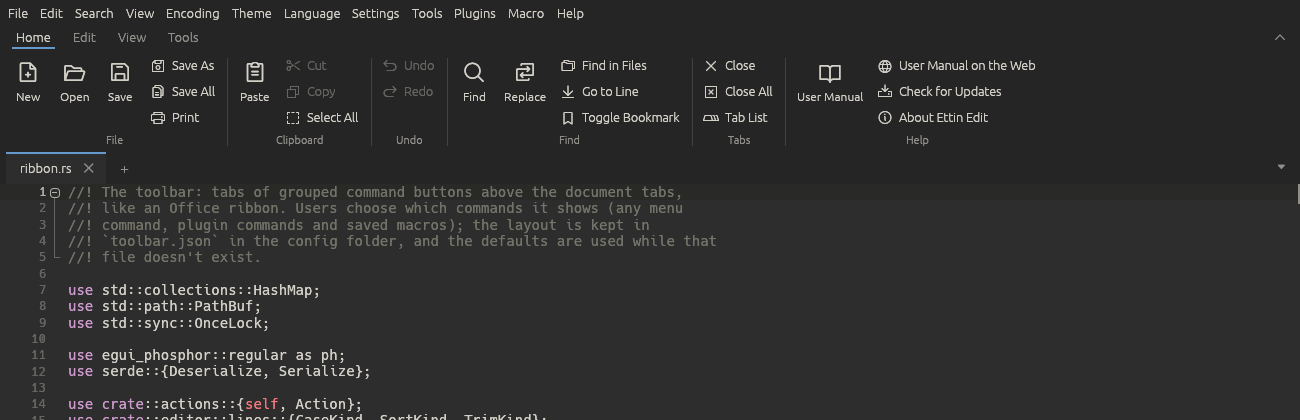
Under the menu bar is a tabbed toolbar, like the ribbon in Microsoft Office. Each tab holds groups of buttons for commands you use often. You can put any menu command on it, plugin commands and saved macros too, and arrange the tabs, groups and buttons however you like.
Using it
- Click a tab name (Home, Edit, View, Tools) to show its buttons.
- Hover over a button to see where its command is in the menus and its shortcut.
- Buttons for commands that turn something on or off, such as Word Wrap, are outlined while it's on. Buttons for commands that can't run right now, such as Undo with nothing to undo, are greyed out.
- When the window is too narrow for a tab, scroll its buttons sideways with Shift and the mouse wheel.
The default tabs
| Tab | Groups |
|---|---|
| Home | File, Clipboard, Undo, Find, Tabs, Help |
| Edit | Lines, Sort, Case, Comment, Blanks, Selection |
| View | Show, Zoom, Folding, Panels, Window, Customise |
| Tools | Compare, JSON, XML, Data (CsvQuery and MIME Tools), Macros |
Collapsing and hiding
To give the text more room, collapse the toolbar so only its tab names show:
- click ⌃ at the right end of the tab names, or
- double-click a tab name, or
- press Ctrl+F1, or
- choose View > Collapse Toolbar.
While it's collapsed, clicking a tab name opens its buttons over the text; they close again when you click a button or anywhere else. Expand it the same ways (⌄ at the right end).
View > Toolbar hides the toolbar completely and shows it again; so does Hide the toolbar in its right-click menu.
You can hide the classic menu bar as well, with View > Menu Bar,
Ctrl+M or Hide the menu bar in the toolbar's right-click menu.
While it's hidden, tap Alt to show it for a moment, and press
Ctrl+M to bring it back for good. The Help menu's commands (the user
manual, Check for Updates and About) are on the toolbar's Home tab too.
With both hidden, only the tabs, the text and the status bar are left. Both choices are kept in
settings.json.
Customising
Open Settings > Customise Toolbar…, or right-click the toolbar and choose Customise Toolbar… (it's also in View and in Preferences).
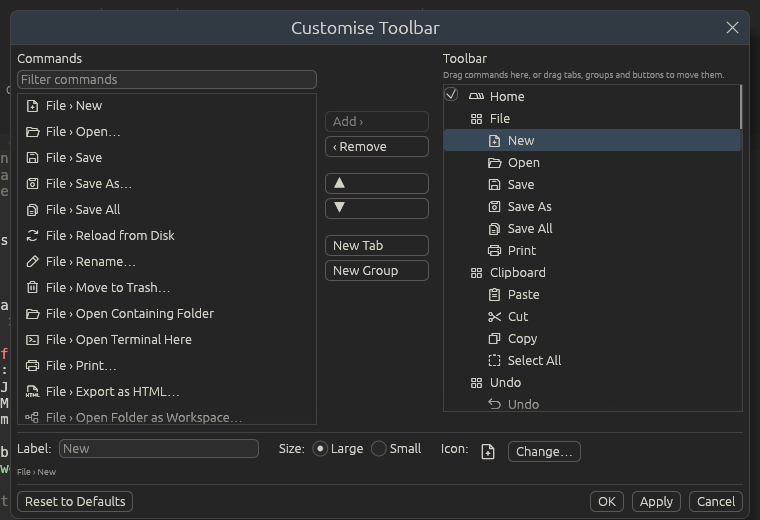
On the left is every command you can add: everything in the menus (themes, languages and encodings included), the commands of plugins that are running, and your saved macros. Type in the filter box to narrow the list; it matches every word you type, anywhere in the command's menu path.
On the right is the toolbar: tabs, the groups in each tab, and the buttons in each group.
Adding a button
- Drag a command from the left onto the right. Dropped on a button, it goes in front of that button; dropped on a group or a tab, it goes at the end of it.
- Or pick a command on the left, select where it should go on the right, and click Add › (or double-click the command). It goes after the selected button, or at the end of the selected group.
Arranging
- Drag tabs, groups and buttons to move them. A button can move to another group or tab, and a group to another tab.
- ▲ and ▼ move the selected item one place. A button at the end of its group moves into the next group.
- ‹ Remove takes the selected button, group or tab off the toolbar. You can also right-click a button on the toolbar and choose Remove from Toolbar.
- New Tab and New Group add an empty one after the selection.
- Untick the box in front of a tab to hide it without losing its buttons.
Changing a button, group or tab
Select it on the right and change it at the bottom of the dialog:
| Selected | What you can change |
|---|---|
| A tab or group | Its name. The built-in names follow the interface language until you rename them. |
| A button | Label (leave it empty for the command's own name), Size and Icon |
Large buttons have the icon above the label. Small buttons have the icon beside the label, and three of them stack in a column.
Change… opens the icon picker. It has the 1,500 icons of the
Phosphor set (MIT licence); type part of a
name, like star or arrow, to find one. Use the command's icon goes
back to the default.
Click OK or Apply to use your changes, or Cancel to forget them. Reset to Defaults puts back the toolbar Ettin Edit came with (press OK afterwards to keep it).
Plugin commands
Plugin commands appear under Plugins › plugin name in the command list once the plugin is running. A plugin can give its commands an icon; the others get a puzzle piece. While a plugin isn't running (turned off, or still starting), its buttons are left off the toolbar, and they come back when it runs again. In the Customise dialog they show greyed out.
To give your own plugin's commands an icon, see Writing plugins.
Where the layout is kept
Your toolbar is saved in toolbar.json in the
settings folder (~/.config/EttinEdit on Linux,
%APPDATA%\EttinEdit on Windows). Copy that file to use the same toolbar on
another computer. While you haven't changed anything, there's no file and you
get the default toolbar, including any new buttons later versions add.
A toolbar you have customised keeps your changes; Ettin Edit 1.7 adds only the
new Help group to the end of its Home tab (unless you renamed or
removed that tab), so the Help commands can be reached while the menu bar is
hidden. Delete the group if you don't want it.
Whether the toolbar is shown or collapsed is kept in settings.json.