A tour of the window
Ettin Edit draws its whole window itself, so it looks the same on Linux and Windows and follows the colours of the theme you pick.
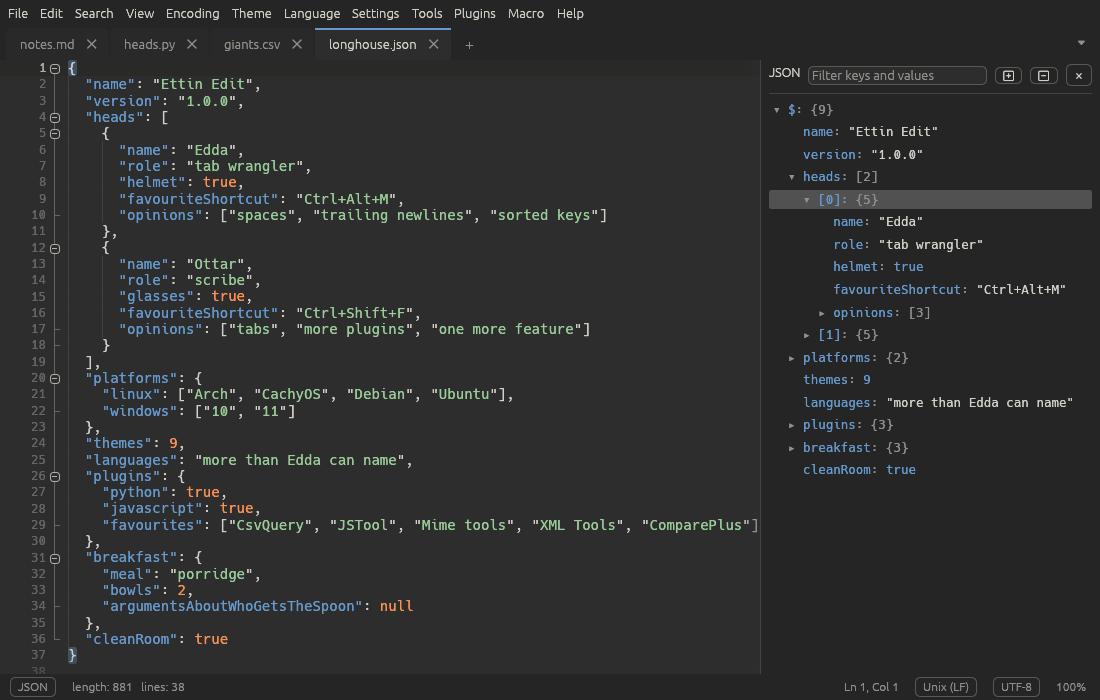
From top to bottom:
The menu bar
You can hide the menu bar to give the window a cleaner look: choose View > Menu Bar or press Ctrl+M. While it's hidden, tap Alt on its own to show it for a moment; it goes away again when you run a command, press Escape or Alt, or click elsewhere. Press Ctrl+M (or use View > Menu Bar from the shown menu, or right-click the toolbar) to keep it showing again. The toolbar can be hidden too, and Ettin Edit remembers both choices.
| Menu | What's in it |
|---|---|
| File | New, open, save, recent files, print, rename, workspace folders, close |
| Edit | Undo, clipboard, line operations, case, comments, multi-select, completion, column editor, read-only |
| Search | Find, replace, Find in Files, marks, Go to Line, bookmarks |
| View | Word wrap, symbols, panels, split view, folding, zoom, distraction-free mode, the menu bar and toolbar |
| Encoding | The encoding the file is saved in, or read it again in another one |
| Theme | Pick a theme, edit its colours, open the themes folder |
| Language | Pick the highlighting language, add your own languages |
| Settings | Preferences, the Shortcut Mapper, Customise Toolbar and quick on/off switches |
| Tools | Compare, CsvQuery, MIME Tools, JSON and JavaScript, XML Tools |
| Plugins | Your plugins' commands, and managing plugins |
| Macro | Record, play back and save macros |
| Help | This manual, update checks and About |
Under the menu bar is the toolbar: tabs of buttons for the commands you use most. Right-click it to customise it, or press Ctrl+F1 to collapse it to its tab names.
Help > About Ettin Edit shows the version you have.
Right-clicking the text gives you the whole Edit menu, the Tools menu and your plugins' commands, so you rarely need to go up to the menu bar.
Tabs
Each open file has a tab. A dot on a tab means it has unsaved changes, and a pin means it's pinned. At the end of the tab bar:
- + opens a new, empty tab (Ctrl+N).
- ⏷ opens the tab list, handy when there are more tabs than fit.
Right-click a tab for close, pin, split-view and file commands. Hover over it to see the file's full path.
When the window is split in two, each half has its own tab bar.
The find bar
Ctrl+F or Ctrl+H opens the find bar above the text. See Finding and replacing.
The editor
The text itself, with the gutter on its left:
- line numbers,
- bookmarks (click the gutter next to a line, or press Ctrl+F2),
- fold markers: − folds a block away and + shows it again.
The editor highlights the current line, the bracket matching the one at the caret, and other places where the selected word appears. Everything it shows can be turned on and off in the View menu.
Panels
Panels open beside the text and stay until you close them:
| Panel | Where | Opens with |
|---|---|---|
| Folder as Workspace | left | File > Open Folder as Workspace… |
| Function List | right | View > Function List |
| Document Map | right | View > Document Map |
| JSON tree | right | Ctrl+Alt+J |
| Search results | bottom | Find All or Find in Files |
| XPath | bottom | Ctrl+Alt+Shift+E |
| CsvQuery | bottom | Ctrl+Alt+Q |
| Plugin panels | right or bottom | the plugin's own command |
Drag the edge of a panel to resize it.
The status bar
On the left:
- The language, such as Rust or Plain Text. Click it to choose another.
- length (characters) and lines in the document.
- In XML files, the XPath of the element at the caret. Click it to copy it.
- ● Recording macro while a macro is being recorded.
- Read-only when the tab is read-only. Click it to allow editing again.
On the right:
- Ln and Col, the caret's line and column, followed by Sel (how many characters are selected) and how many carets there are, when that applies. Click it to go to a line.
- The line ending: Windows (CR LF), Unix (LF) or Macintosh (CR). Click it to change the document's line endings.
- The encoding, such as UTF-8. Click it for the Encoding menu.
- The zoom level.
The command palette
Press F1 anywhere. Type a few letters of any command, for example
dup for Edit › Line Operations › Duplicate, then press Enter.
Words can be in any order and needn't be complete, and each command shows its
shortcut, so the palette is also a good way to learn them.